Quick Start
Complete: power and connection → password change → camera and stream check → AI demo → network setup.
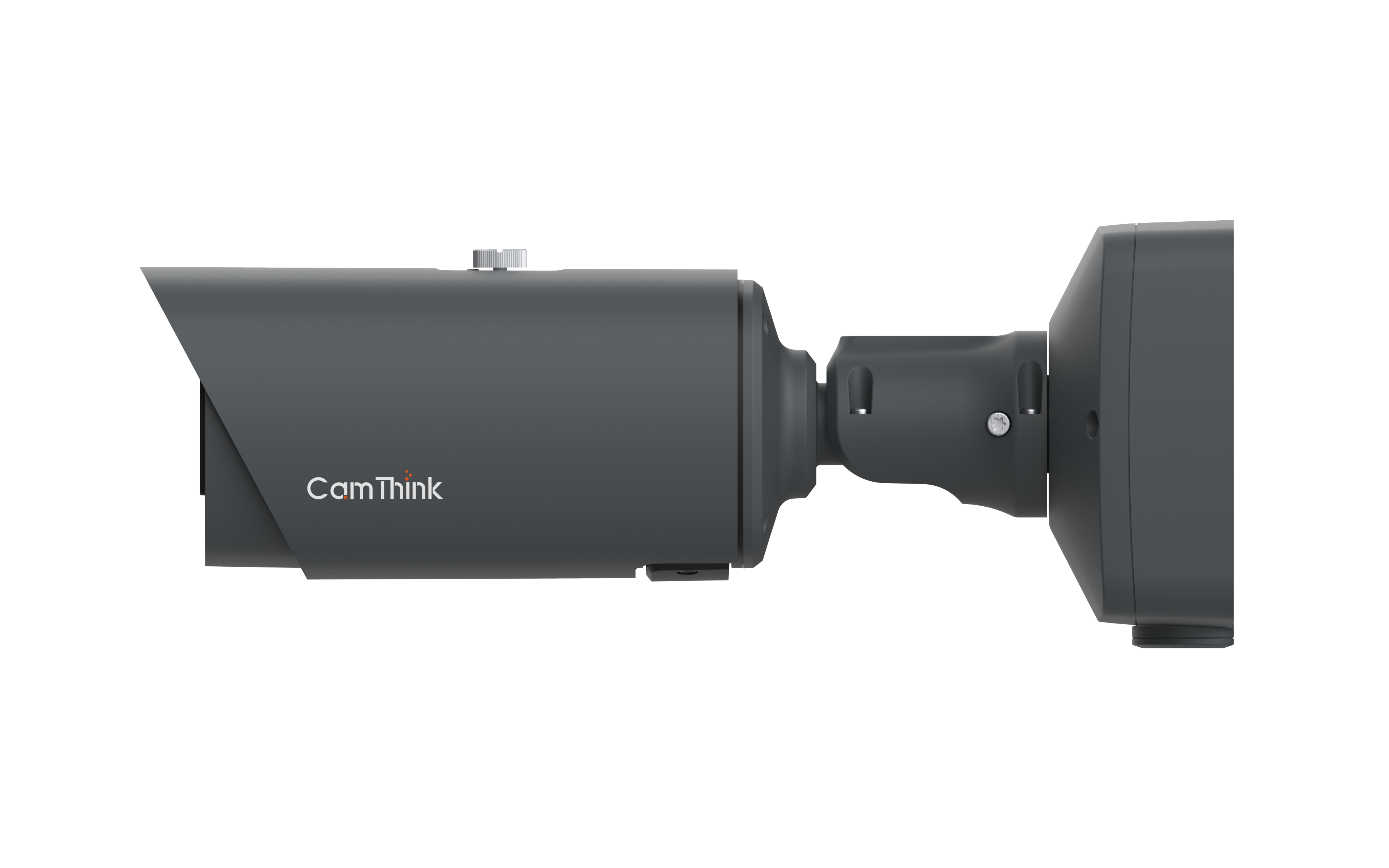
1. Prepare
| Item | Requirement |
|---|---|
| Power | PoE 802.3AT or DC 12V |
| Network | Switch, Ethernet cable, and a computer with configurable Ethernet IP |
| Browser | Chrome, Edge, Firefox, or Safari |
IP67 rated, -40 °C to +60 °C operating temperature, 5–6 W power consumption. Use a matching wall-mount or other mounting bracket.
2. Power and Connect
PoE: connect the Ethernet cable to a PoE switch. DC: connect a 12V adapter to the DC port. Proceed when the LED is solid (about 30–60 seconds).
The factory IP is 10.0.0.1. Set the computer to the same subnet, for example 10.0.0.100/24, then run:
ping 10.0.0.1
A reply confirms the connection. If it fails, check power, cable, computer IP, and firewall. If the device has joined DHCP, look up its new address in the router.
3. Log In and Change the Password
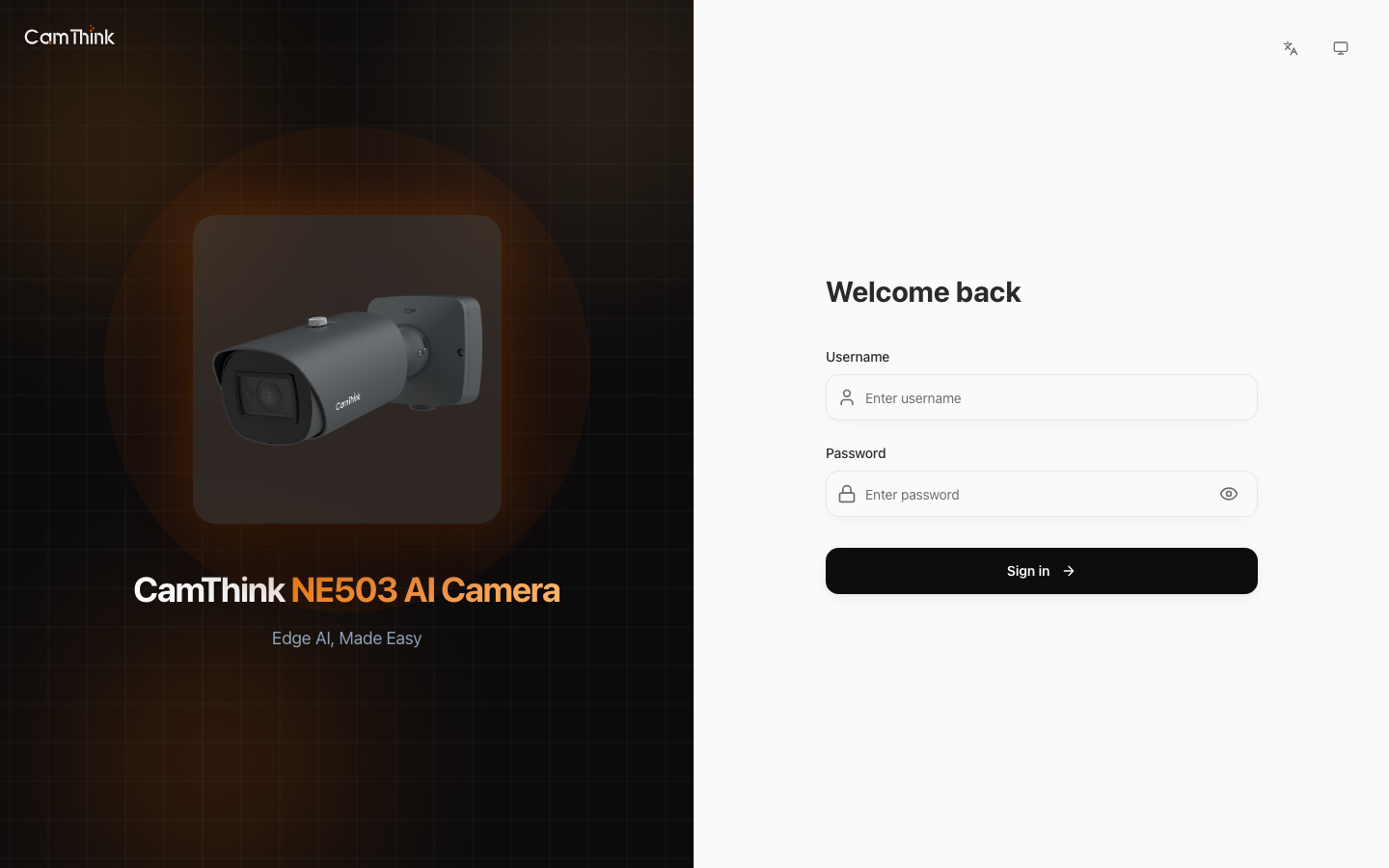
Open https://10.0.0.1 and sign in with admin / password.
Open Settings → Device Info → Change Password, set a new password, and save it.
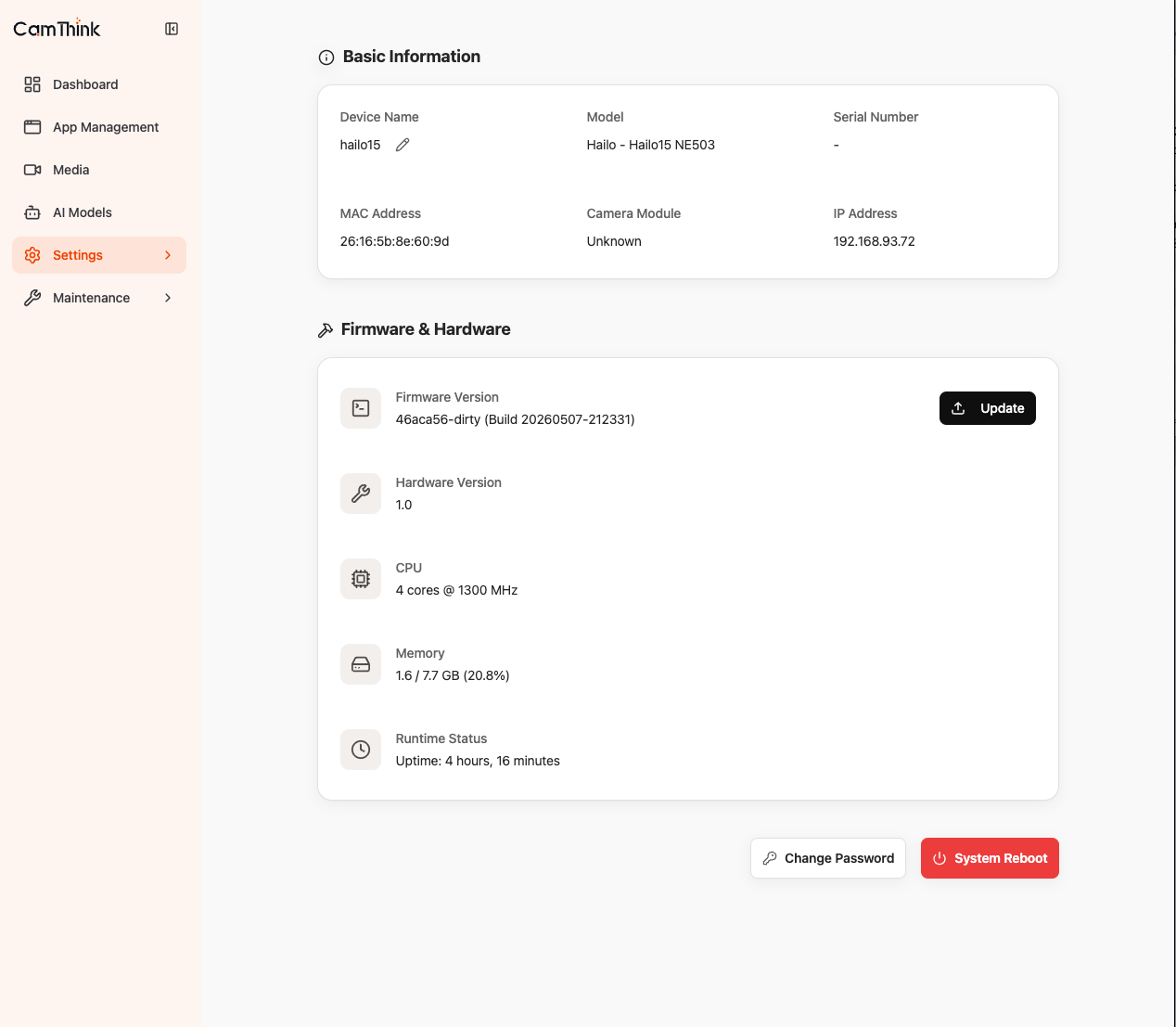
The device has no local password-reset function. A forgotten password requires support-assisted reflashing.
4. Verify the Camera and Stream
Open Media. A live image confirms the camera pipeline.
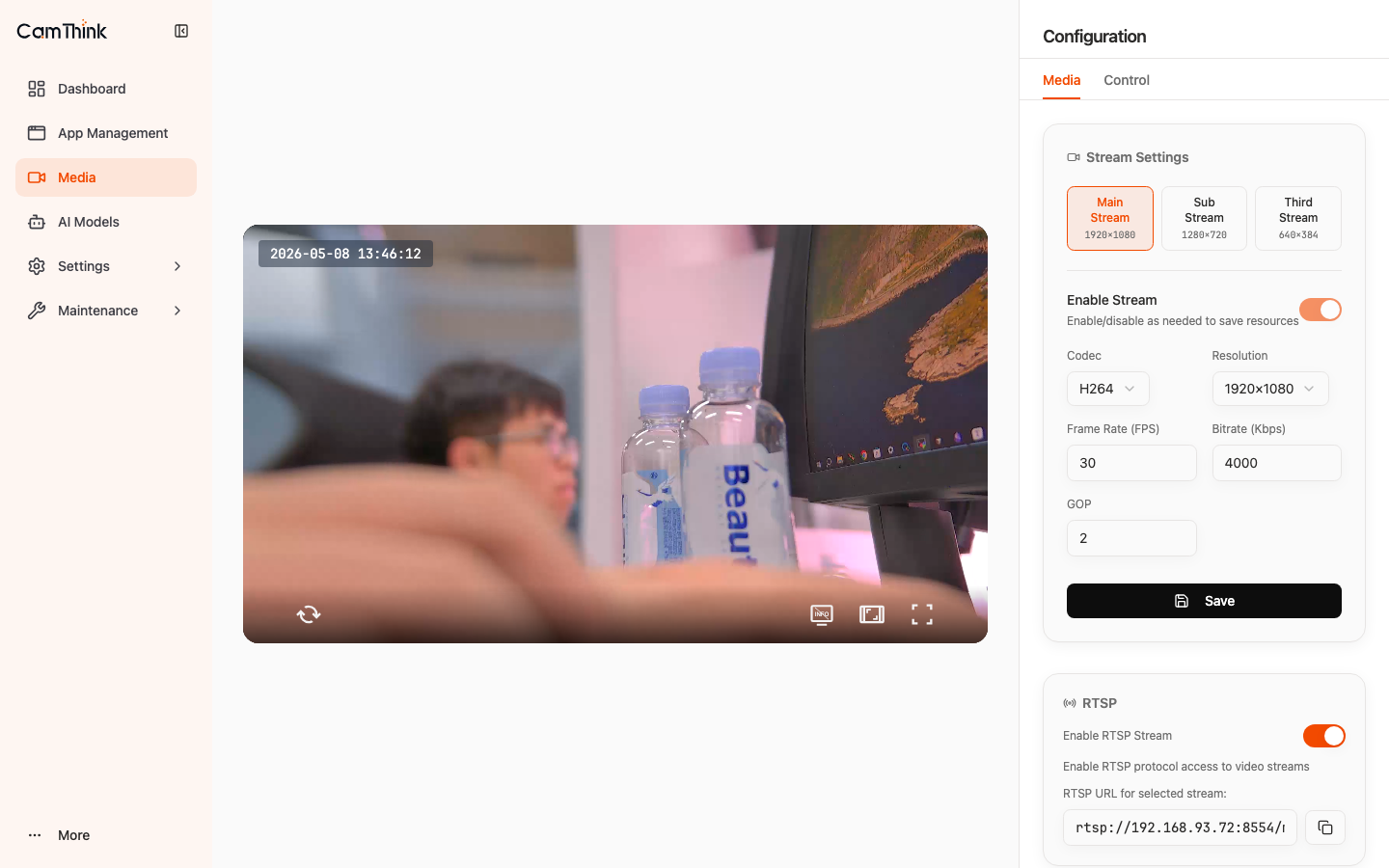
Enable Enable RTSP Stream and open this URL in VLC:
rtsp://<device-ip>:8554/main
Successful playback confirms streaming. For a black screen or stutter, confirm the setting was saved and use TCP transport in the player.
5. Run the AI Demo
Download model-showcase-latest-arm64.neoapp.
Open Applications → Import → Upload Package, select the .neoapp file, grant the required model and stream permissions, and click Install.
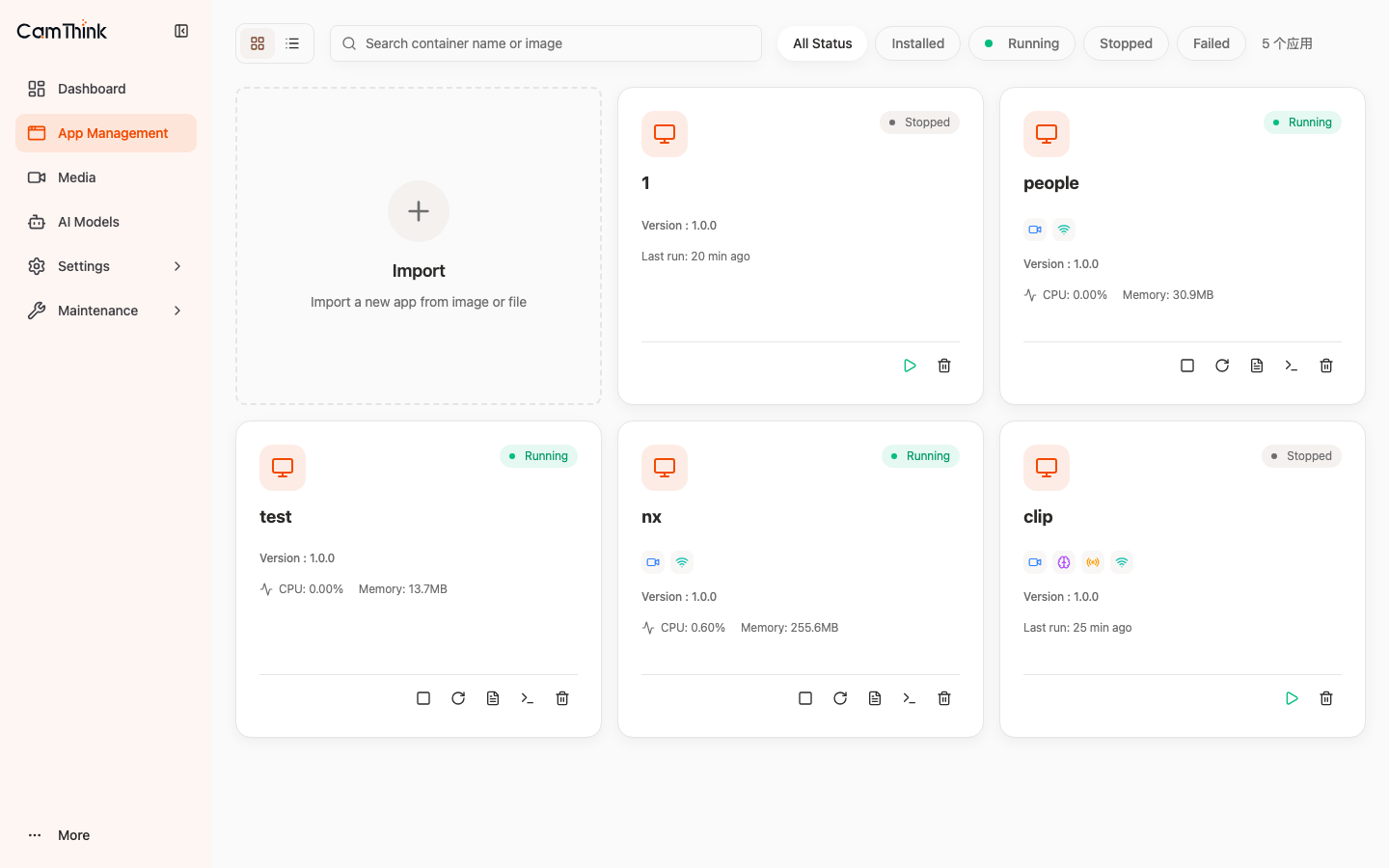
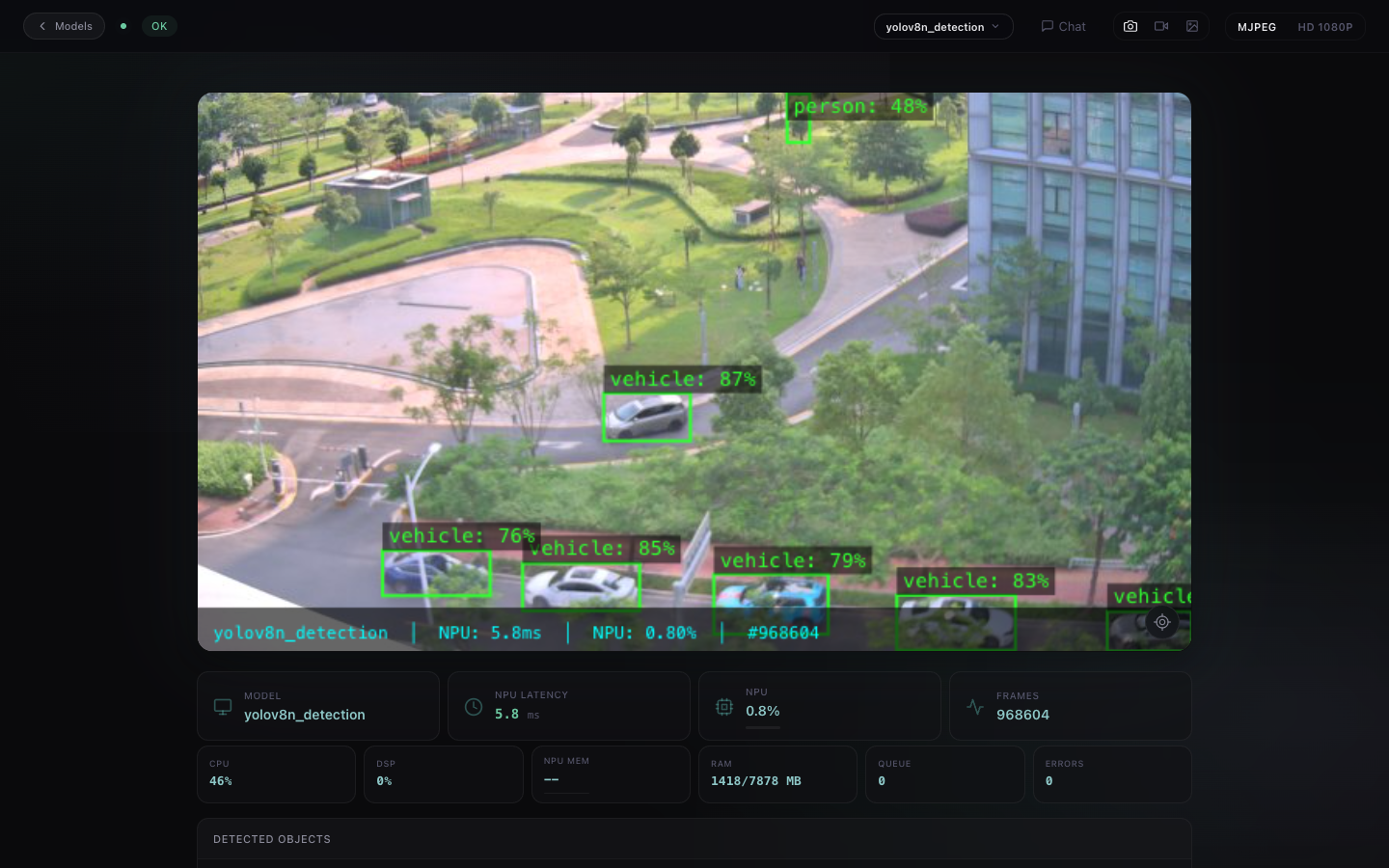
Start the app and click Visit App to view inference results.
Source, SDK, and build resources are listed in Resources.
6. Configure Network and Time Zone
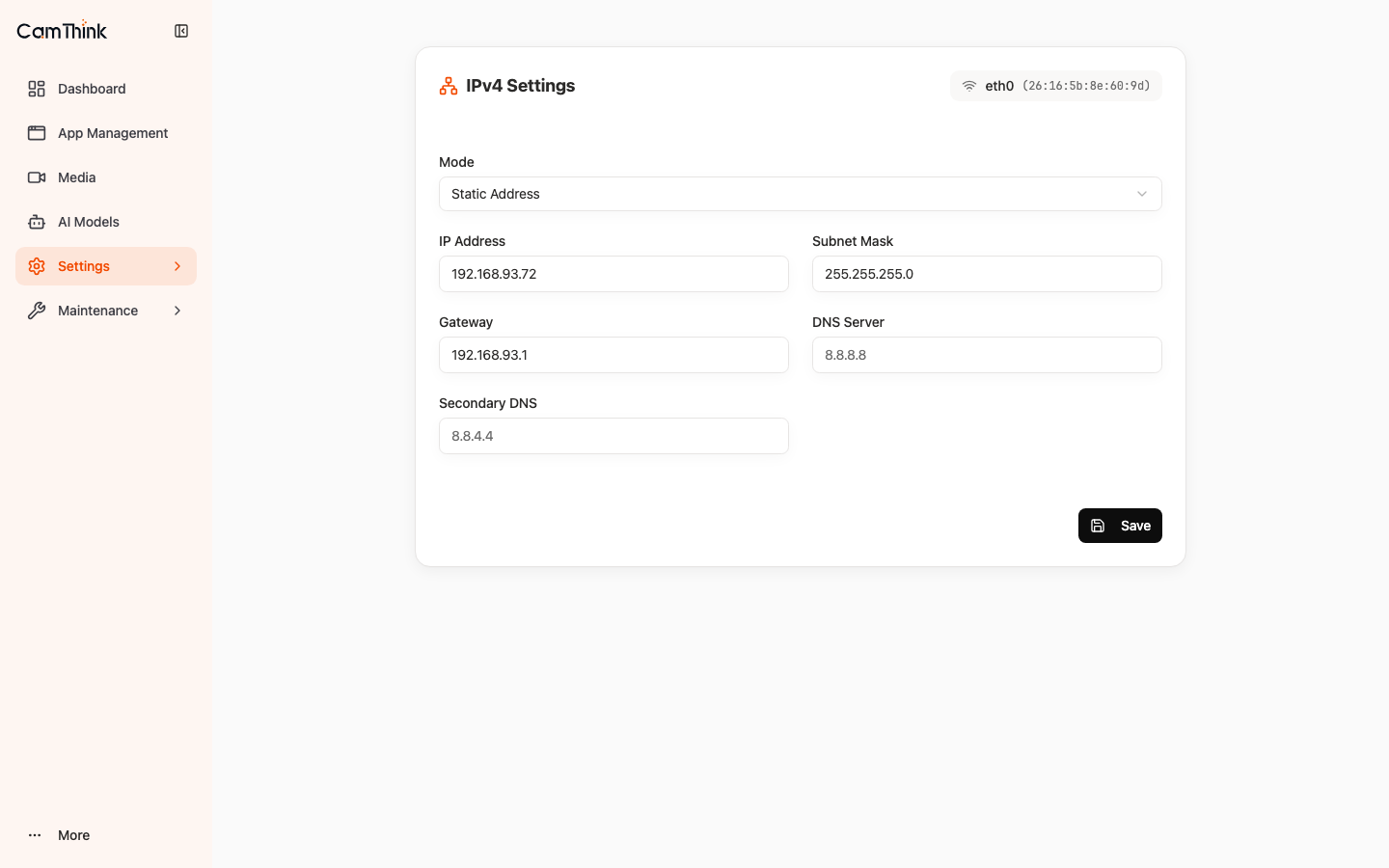
Open Settings → Network, select DHCP or Static Address, and save. Reconnect to the device at its new IP.
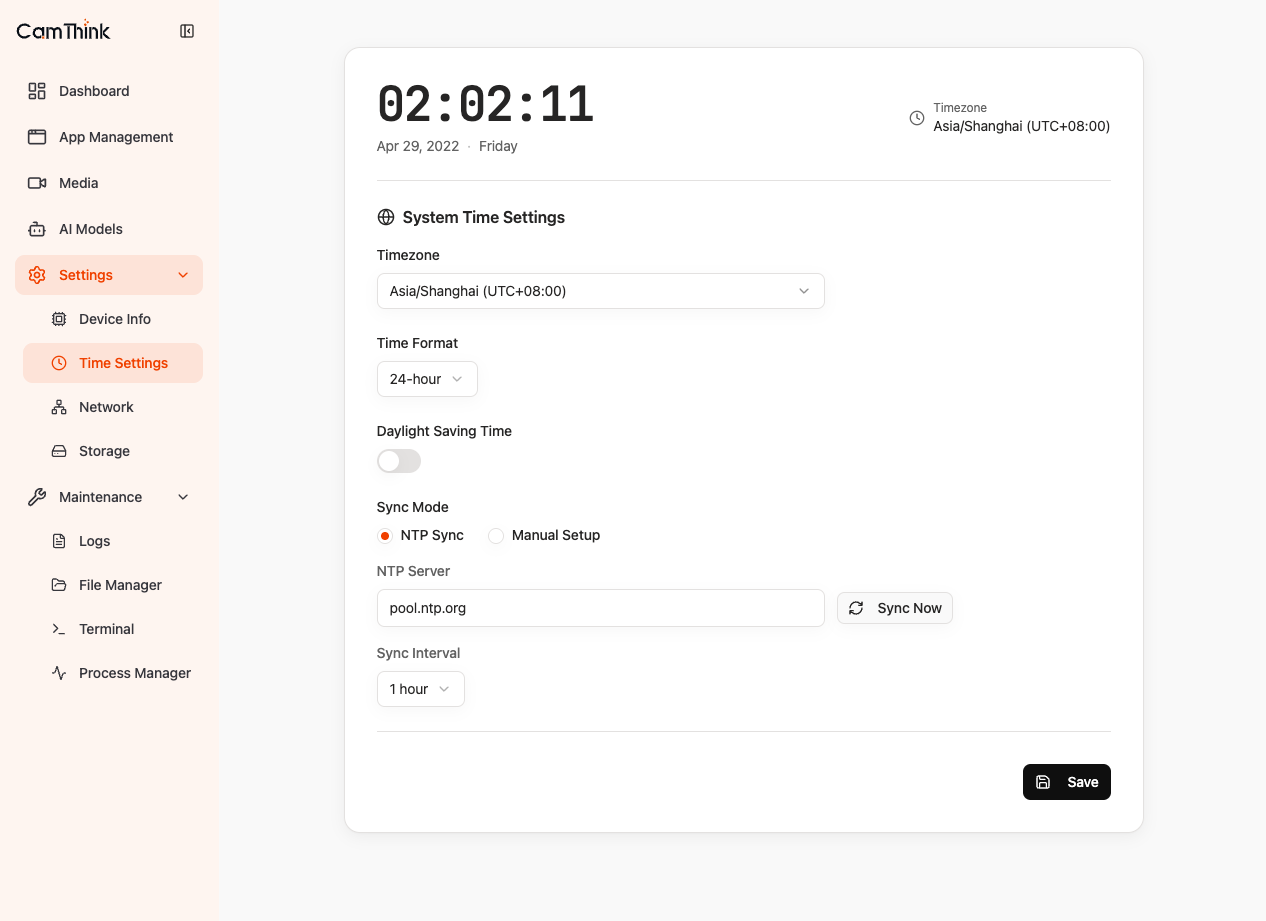
Open Settings → Time Settings, select the time zone, configure NTP, and click Sync Now.
For device maintenance, see Device Maintenance.