5-Minute Quick Start
Experience NeoMind's core loop — device ingress → data visualization → AI conversation — as fast as possible. Each step has a ✓ checkpoint and troubleshooting tips.
For full installation options and troubleshooting see Install & Setup.
What You'll Achieve
By the end of this guide you will have:
- ✅ A NeoMind service running locally
- ✅ A large language model connected (local or cloud)
- ✅ Your first device connected and pushing data via webhook
- ✅ Live data visible on a dashboard
- ✅ Asked the AI a question in natural language and gotten an answer
- A macOS / Windows / Linux machine (4 GB+ RAM)
- No need to pre-install databases, message brokers, or any other infrastructure — everything is built into NeoMind
- For a local LLM (recommended): an extra 4–8 GB RAM; otherwise you can use a cloud API
Step 1: Install NeoMind (~2 min)
Pick any one of the three install methods — all ship the Web UI and MQTT broker and require no databases, message brokers, or other external components.
Option A: Installer Package (Desktop App, recommended)
Best for: trying NeoMind on a personal computer without touching a terminal.
- Open GitHub Releases and download the package for your system from the latest release:
- macOS (Apple Silicon) →
.dmg - Windows (x86_64) →
.msi/.exe - Linux (x86_64 / arm64) →
.AppImage/.deb/.rpm
- macOS (Apple Silicon) →
- Install and launch:
- macOS: drag NeoMind into Applications. If first launch says "cannot verify developer", run
xattr -cr /Applications/NeoMind.appin a terminal and open again (or click "Open Anyway" in System Settings → Privacy & Security) - Windows: on the SmartScreen prompt click "More info → Run anyway"
- Linux:
.debinstalls with a double-click orsudo apt install ./neomind-*.deb;chmod +xthe.AppImageand run it
- macOS: drag NeoMind into Applications. If first launch says "cannot verify developer", run
Access: the desktop app opens its own native window — no browser needed.
Option B: Command Line (local machine or server)
Best for: running long-term on a Linux host.
- Run the install script (needs root or sudo; downloads the static binary and registers a systemd service):
curl -fsSL https://raw.githubusercontent.com/camthink-ai/NeoMind/main/scripts/install.sh | sh
- When the script finishes the service is already running — the binary lands in
/usr/local/bin, service nameneomind:
systemctl status neomind # should show active (running)
- Useful environment variables (export before running):
PORT=9375(service port),INSTALL_DIR(install directory),NO_SERVICE=true(binary only, skip the service)
Access: on the same machine use http://localhost:9375; on a remote server use http://<server-IP>:9375 (or forward with ssh -L 9375:localhost:9375 user@server when there's no browser).
Option C: Docker (local machine or container host)
Best for: environments that already run Docker, for the cleanest deployment and upgrade experience.
Prerequisite: Docker installed (on Linux you need sudo or membership in the docker group).
- One command to start (data persisted):
docker run -d --name neomind \
  -p 9375:9375 -p 1883:1883 \
  -v neomind-data:/app/data \
  camthink/neomind:latest
The image (multi-arch amd64 + arm64) ships the llama.cpp runtime and the default model LFM2.5-2.6B, in place on first run. docker compose up -d works too (compose file in Install & Configure).
- Confirm startup:
docker logs -f neomind(wait for the ready output, Ctrl+C to stop)
Access: local Docker uses http://localhost:9375; on a remote host use http://<host-IP>:9375 (port mapping done by -p).
Use a named volume for the data directory (as above). Bind-mounting a host directory onto
/app/dataskips the pre-bundled model — use the download API instead.
Step 2: Create the Admin Account & Log In (30 sec)
Opening the access URL for the first time shows the create admin account page:
- Fill in a username and password (keep them safe — the platform's data-encryption key is bound to this account); email is optional
- Click Get Started to finish, then log in
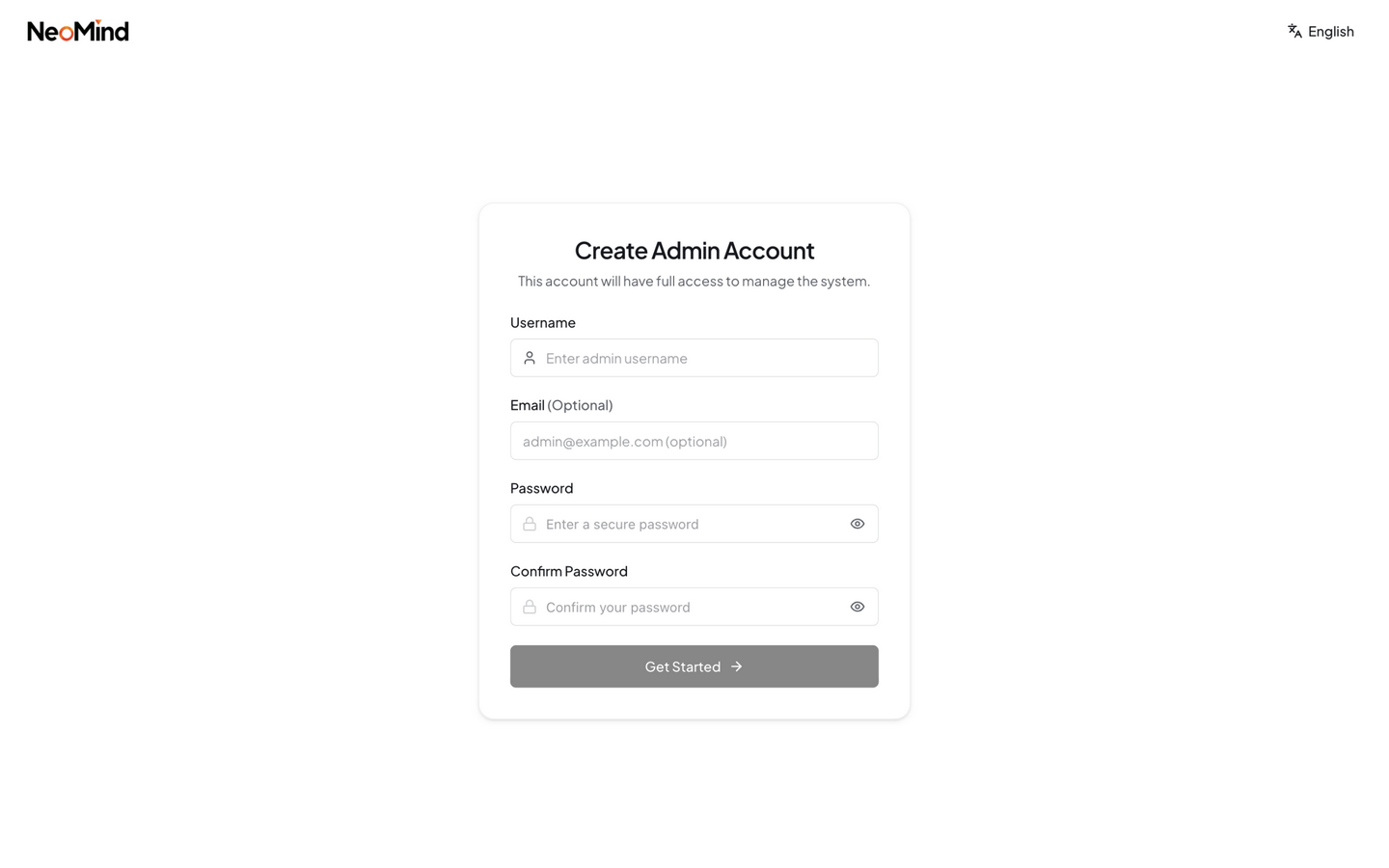
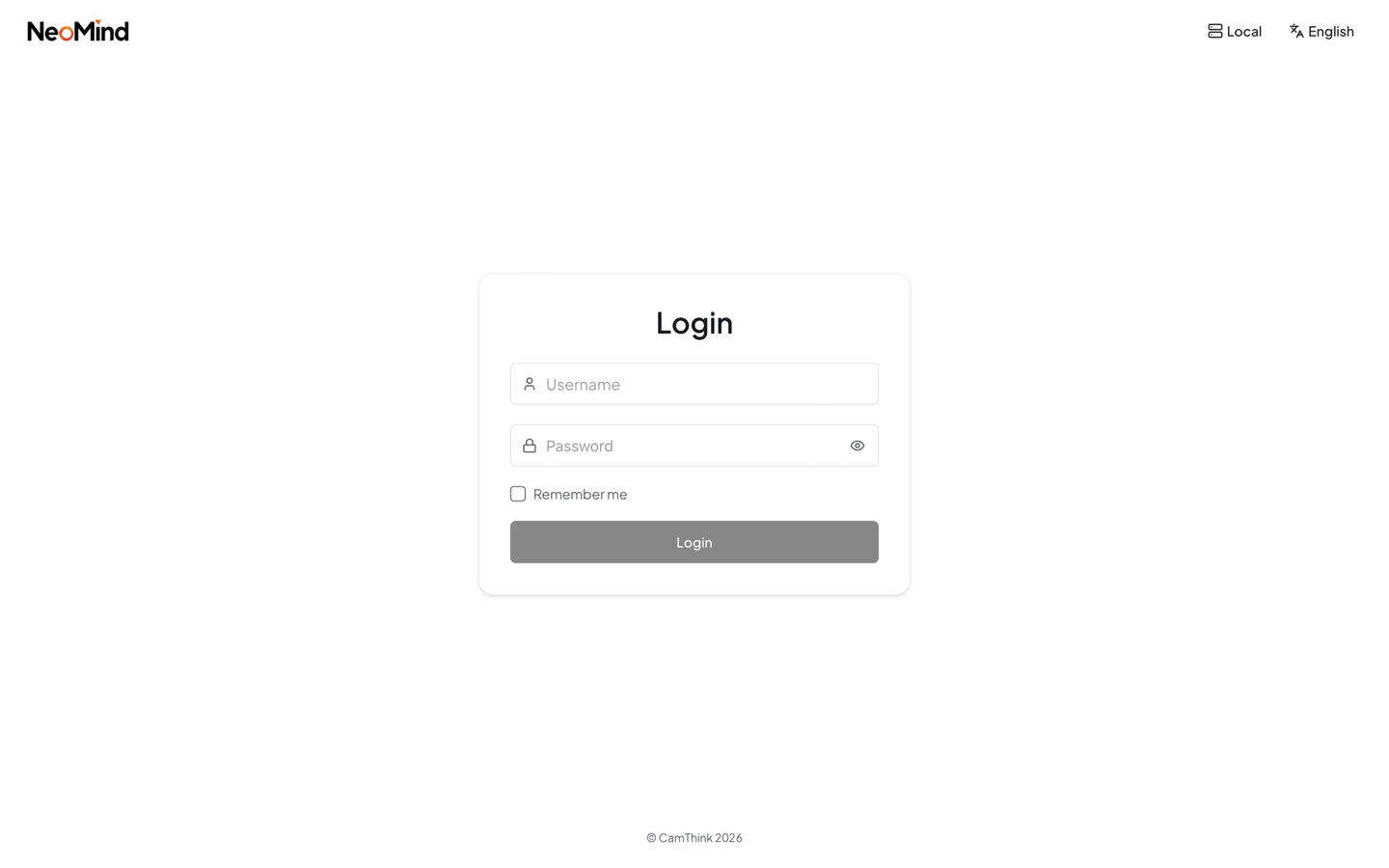
✓ Checkpoint: after logging in you see the AI Chat welcome page = account ready.
- Forgot the password? Run
neomind user reset-password adminon the server to reset it - Blank page? Make sure you're using the access URL matching your install method from Step 1 (localhost or the remote IP)
Step 3: Download the Built-in Model — Give NeoMind a Brain (1–2 min)
There are two entry points with identical content — pick either:
- In the post-login onboarding (recommended): on the wizard's "Configure AI Model" step, the Built-in Model card has a Download button
- Settings → LLM Backends: the Built-in Model card at the top → Download (reinstalling or switching models also happens on this card)
The default guide page when no backend exists — right after registration, before any LLM backend is configured, AI Chat shows this guide directly:
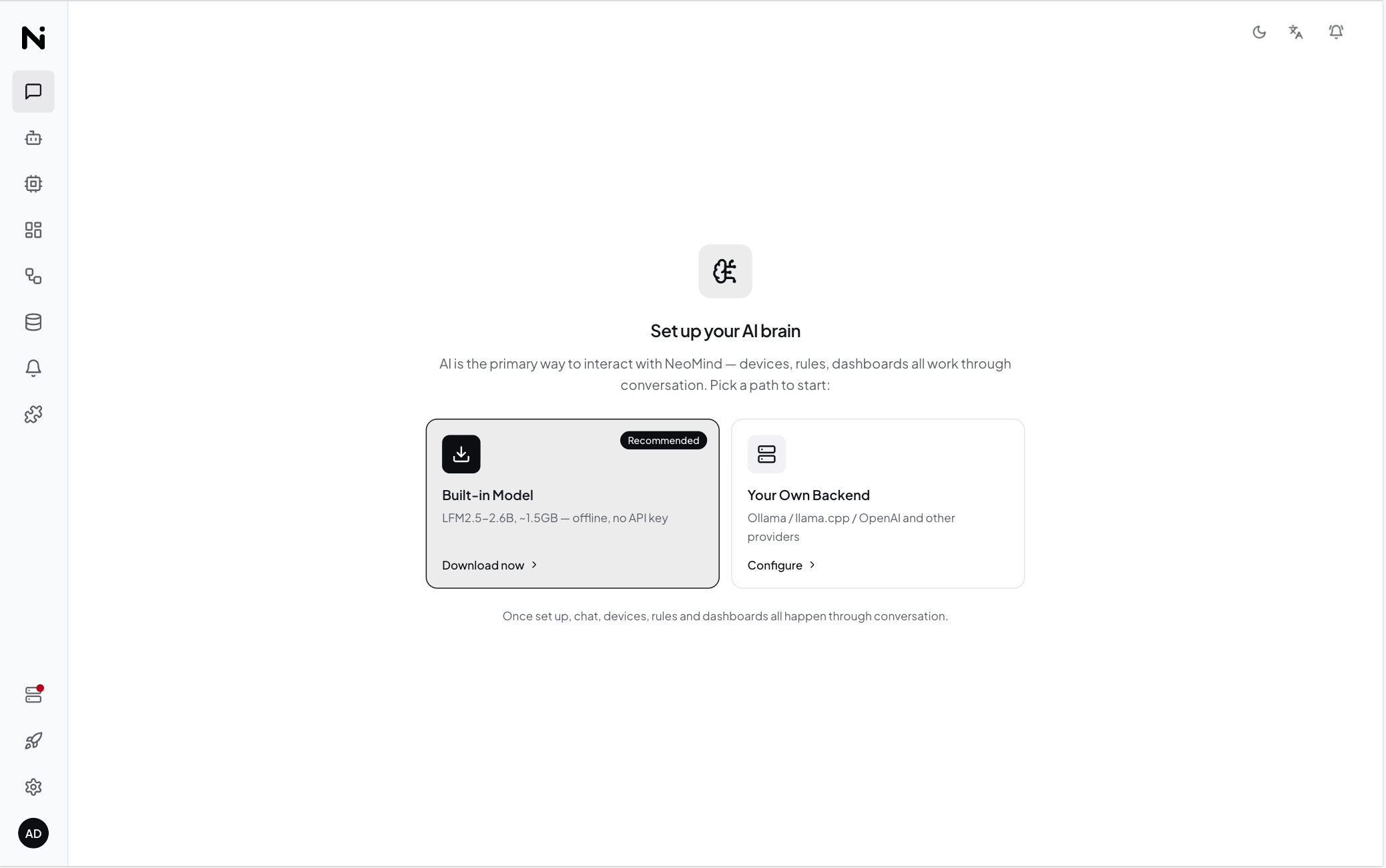
Clicking starts the platform-recommended model download (~1.5GB, live progress, resumable); when it finishes the model is ready automatically:
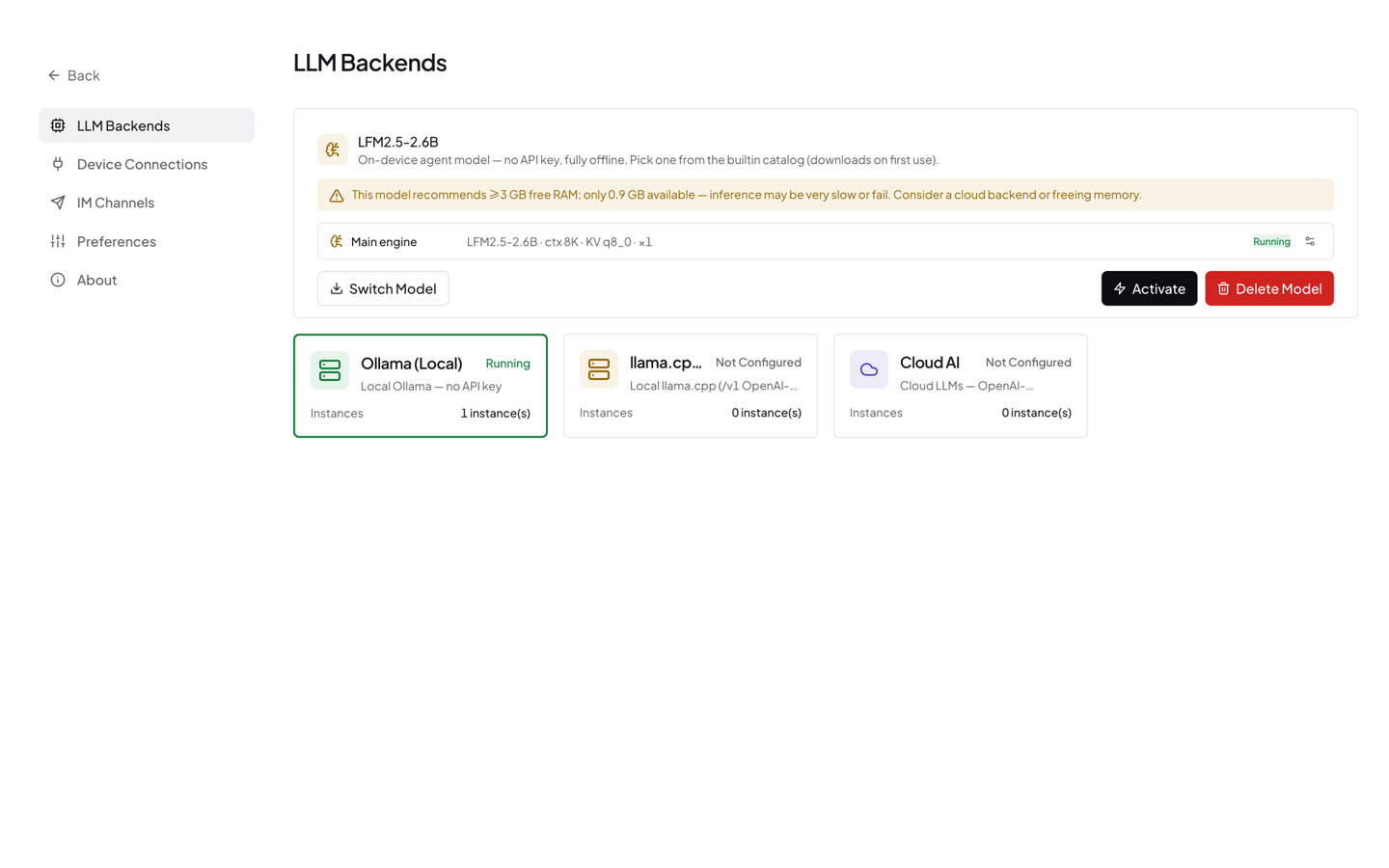
✓ Checkpoint: the card shows Running with Switch Model / Activate buttons = the brain is in place.
On a brand-new instance, AI Chat works even without the manual download — the model selector automatically lands on the built-in model (llama.cpp auto), and the platform fetches the default model on first use:
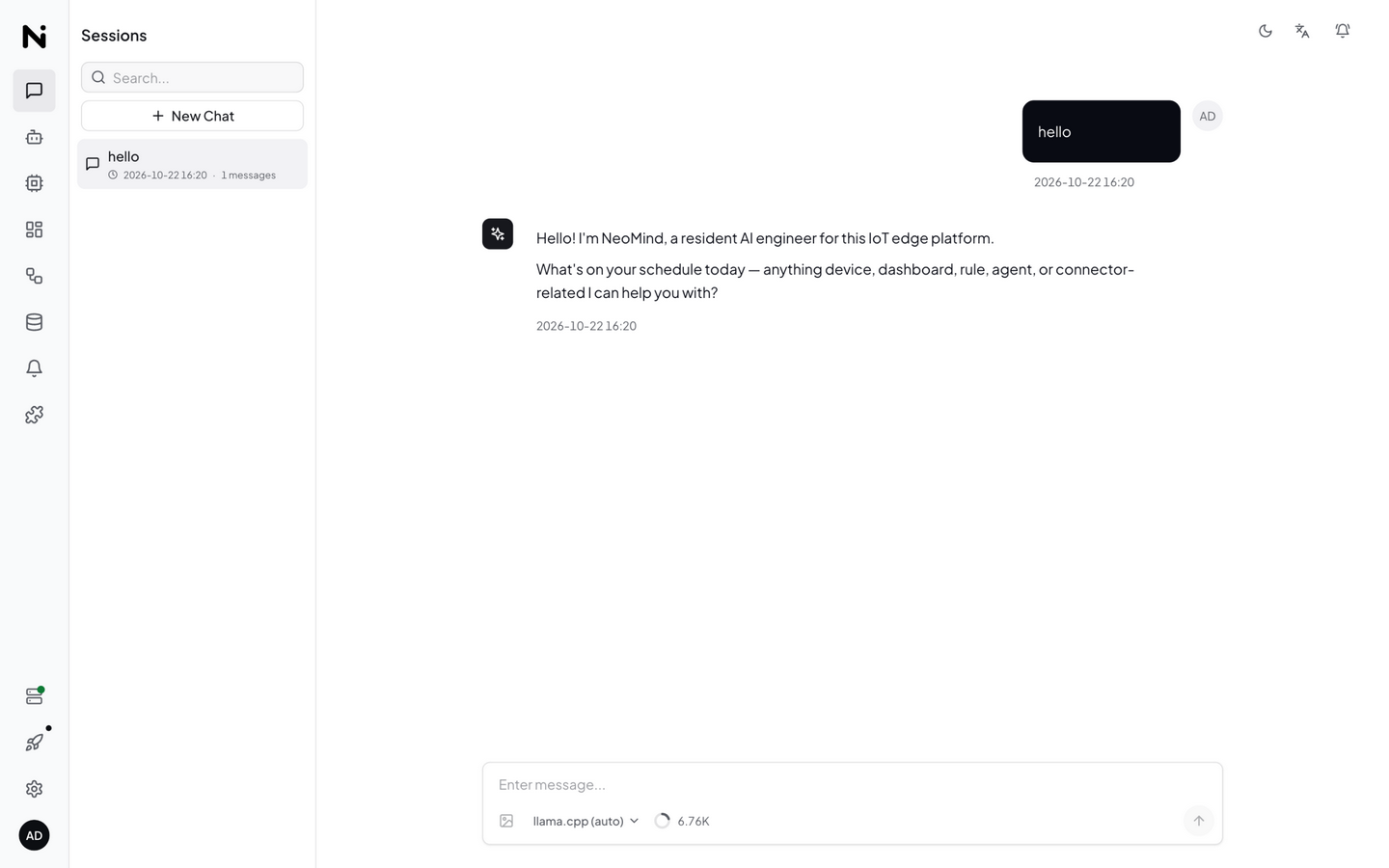
The value of clicking Download manually is finishing the download up front and pinning the model, avoiding the first-conversation wait.
No API key, no Ollama or Docker install, fully offline. Want one of the other catalog models (incl. the 0.7GB vision variant MiniCPM-V) or to import your own GGUF? Click Switch Model — see Configure LLM Backend.
- Low-memory warning? The built-in model needs 3 GB RAM minimum — switch to a lighter model or use a cloud backend on tight machines
- Download interrupted? Downloads resume — click Download again to continue
- Activate button greyed out? Wait for the card state to turn Running before activating
Step 4: Connect Your First Device (1 min)
The fastest ingress method is HTTP Webhook — no MQTT client needed, a single curl simulates a device.
3.1 Create the device
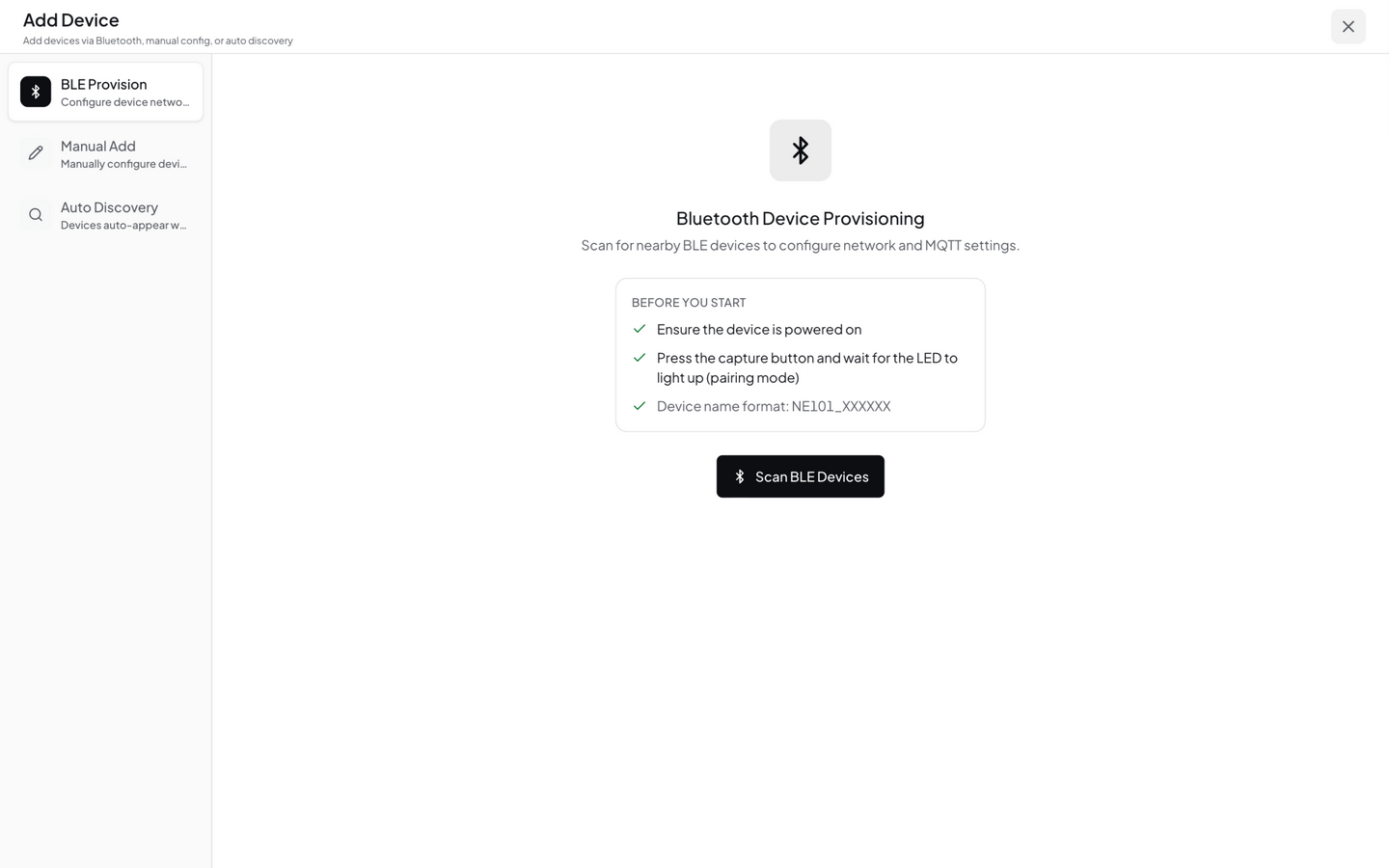
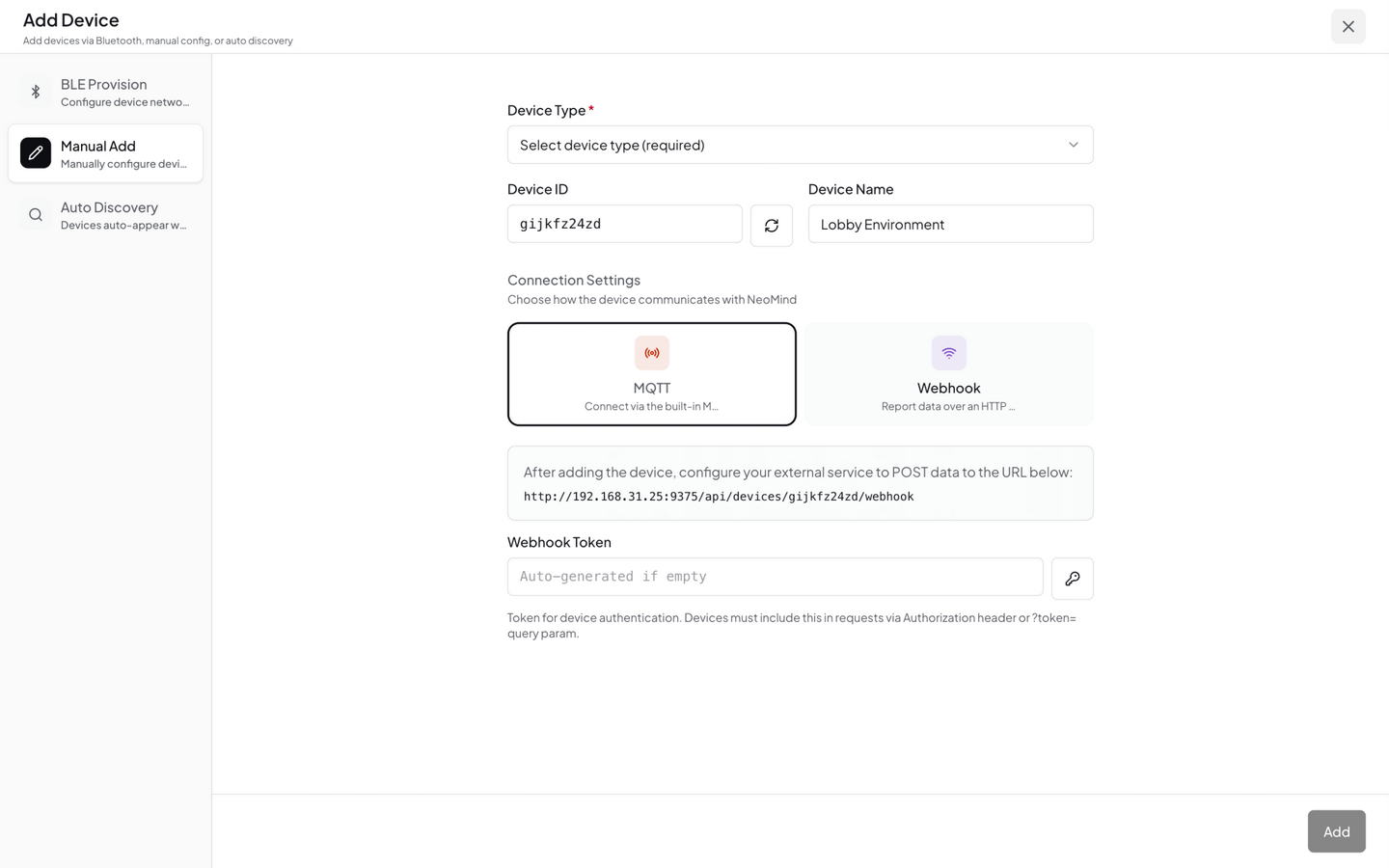
In the Web UI Devices page → click Add Device → select Webhook → name it demo-sensor.
After creation you'll get a dedicated Webhook URL (like /api/devices/<DEVICE_ID>/webhook).
3.2 Push data
Copy the command below, replace <DEVICE_ID> with your device's ID, and run it:
curl -X POST http://localhost:9375/api/devices/<DEVICE_ID>/webhook \
  -H 'Content-Type: application/json' \
  -d '{"temperature": 25.6, "humidity": 60}'
A {"success": true} response means it worked. Open the device detail page to see the latest telemetry values.
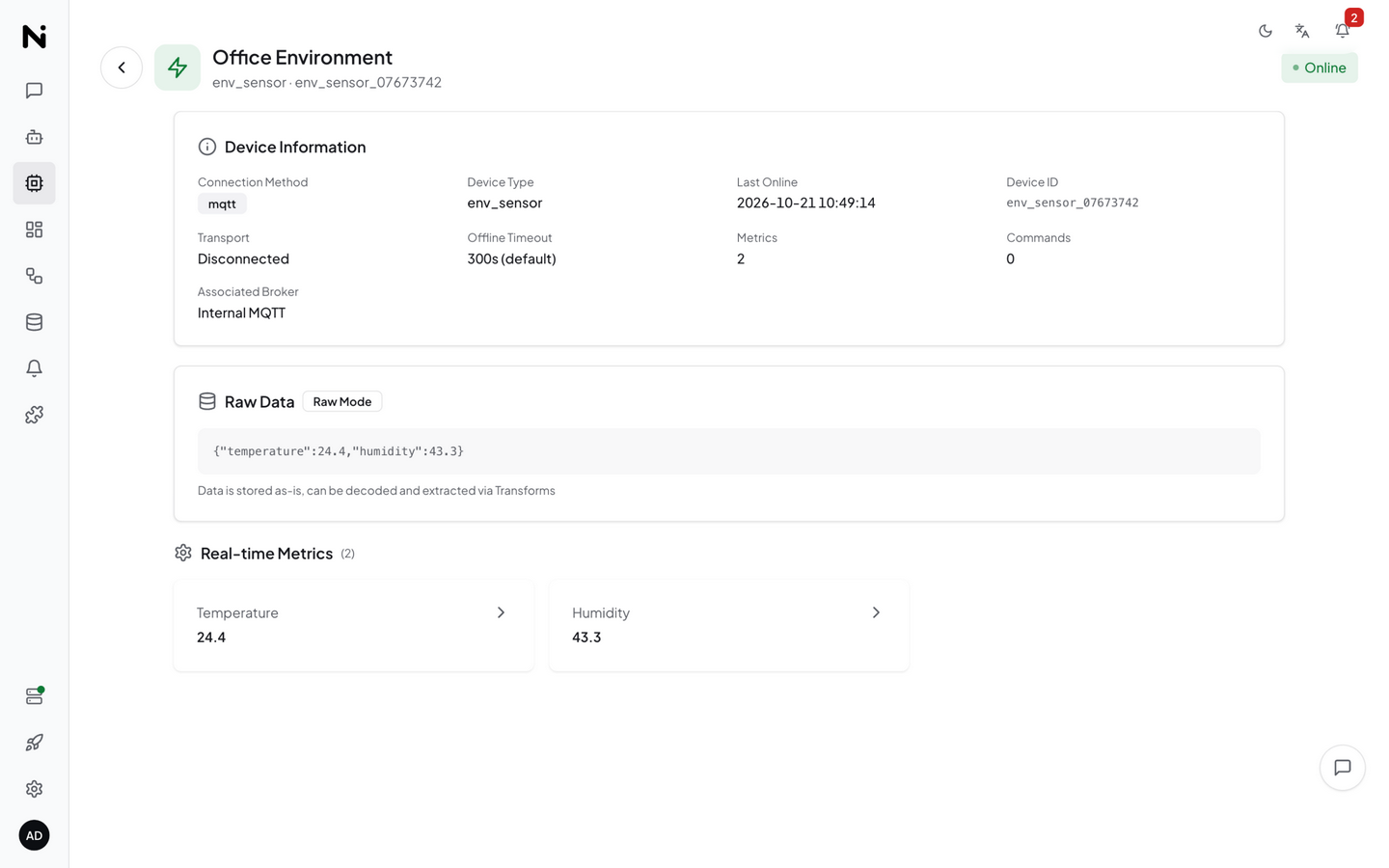
✓ Checkpoint: the device detail page shows
temperature: 25.6andhumidity: 60= data is in the database.
NeoMind has a built-in MQTT broker (localhost:1883) that supports real devices like ESP32, Raspberry Pi, industrial sensors, and more. See Onboard Devices.
- Wrong device ID? Click into the device in the device list — the ID is in the URL
- Forgot Content-Type? You must include
-H 'Content-Type: application/json'
Step 5: See Data on the Dashboard (30 sec)
Go to the Dashboard page and create a dashboard (pick the Overview template or a blank canvas), then add a Value Card widget:
- Click Add Widget → choose Value Card
- Data source →
device:demo-sensor:temperature - Save
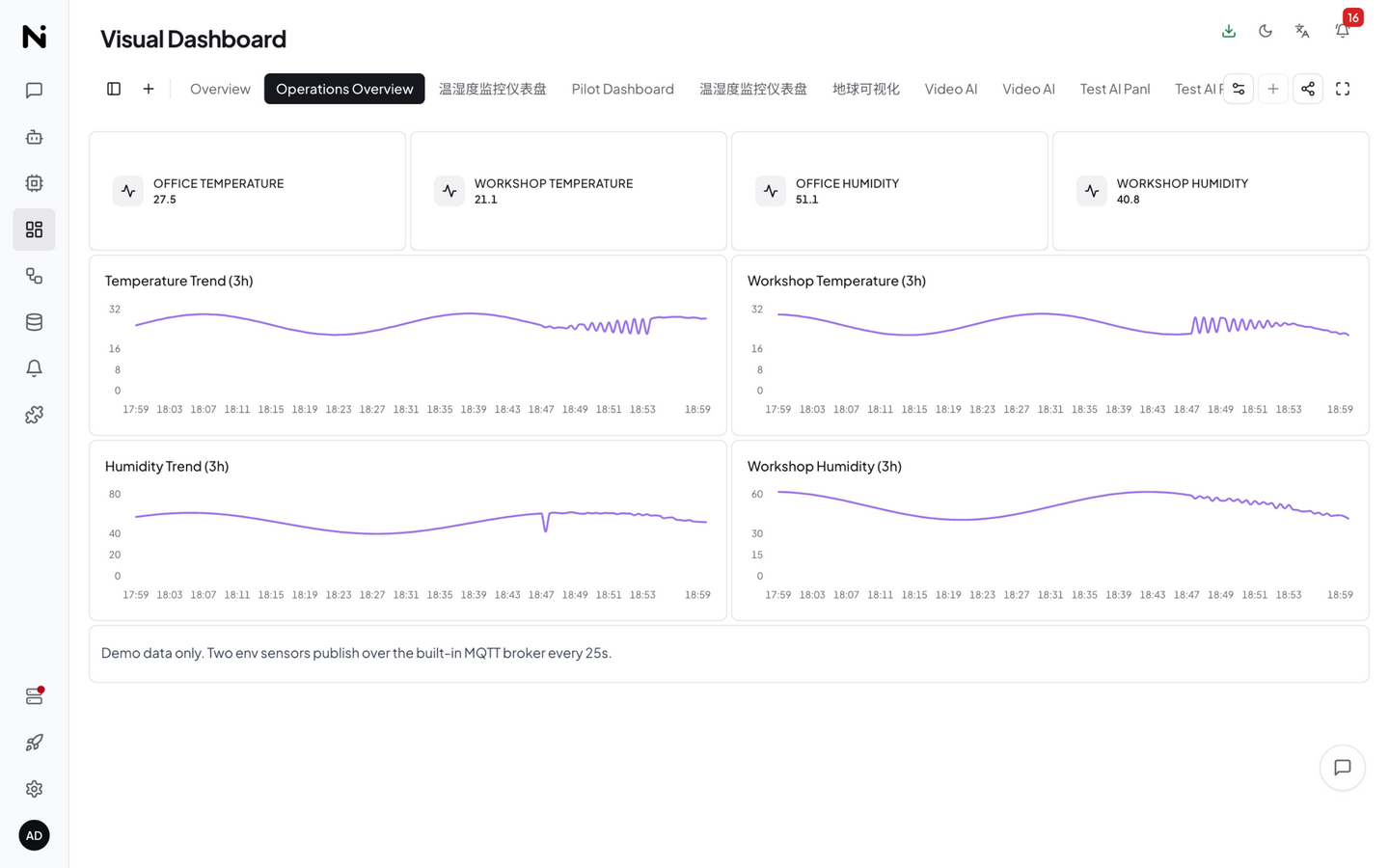
The unified data source reference format is {type}:{id}:{field}:
device:demo-sensor:temperature— device telemetryextension:weather-forecast:temperature— extension metricai:temp-inspector:verdict— AI Agent structured output (an AI-generated virtual metric)transform:temp-converter:temp_f— data transform output
Dashboards, rules, and data pushes all use this format. See the Glossary.
The temperature value appears live on the card. Push another webhook payload and watch it update instantly:
curl -X POST http://localhost:9375/api/devices/<DEVICE_ID>/webhook \
  -H 'Content-Type: application/json' \
  -d '{"temperature": 28.3, "humidity": 55}'
✓ Checkpoint: you see a live temperature reading on the dashboard = visualization loop is working.
See Use Dashboard.
Step 6: Ask AI Chat (30 sec)
Open AI Chat and type:
What devices do I have? What's the temperature of demo-sensor?
The AI Agent will query the device list and latest telemetry, then answer in natural language.
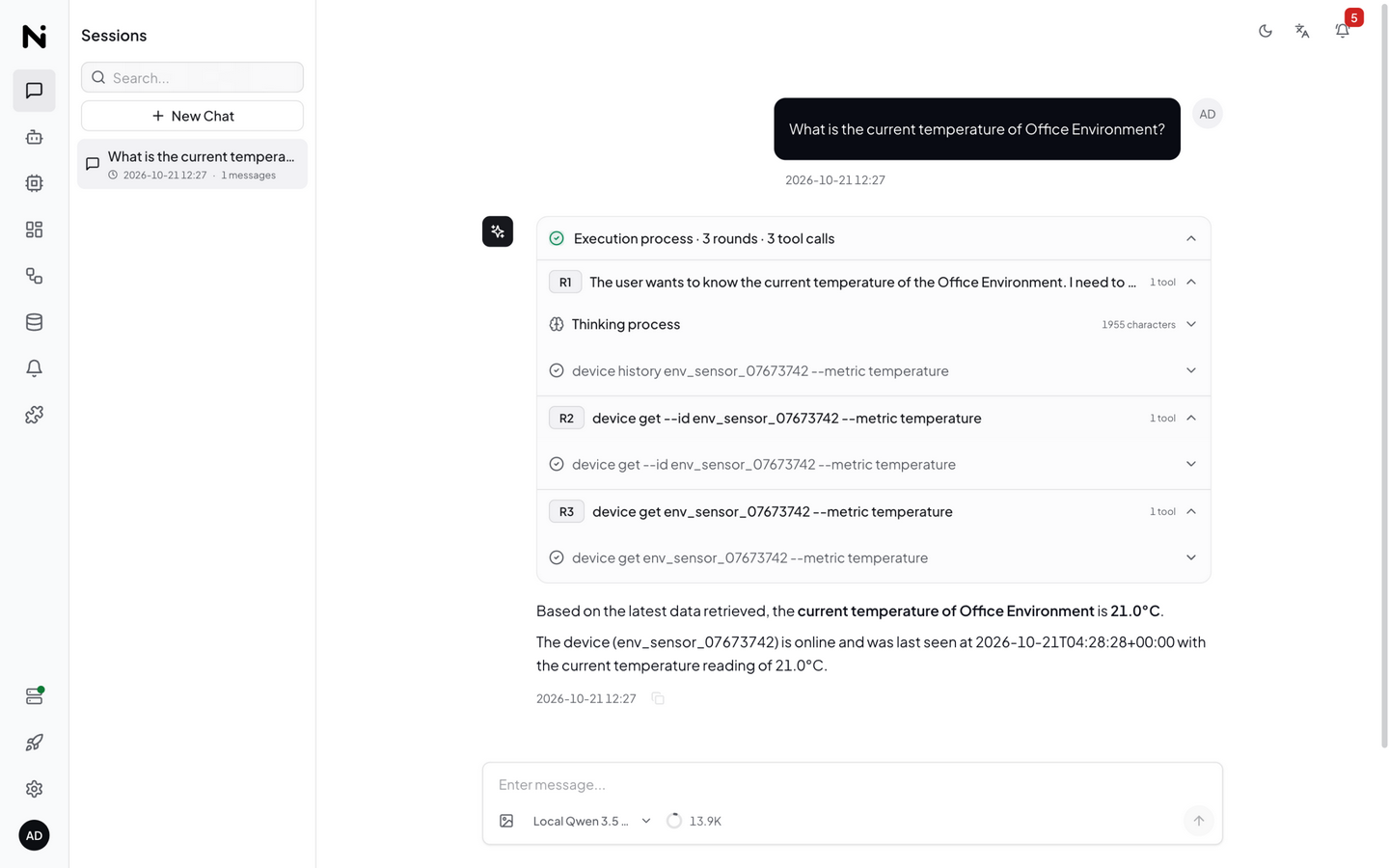
Now try something more ambitious — let the AI create an automation for you:
Notify me when temperature exceeds 30
The AI will understand your intent, create a rule, and configure a notification channel.
✓ Checkpoint: the AI answered your question = the intelligence loop is complete.
- LLM backend not connected? Go back to Settings → LLM Backends and check status
- First reply is slow? Local models need to warm up on first inference — 10–20 seconds is normal
See AI Chat.
🎉 Core Loop Complete
Here's the pipeline you just verified end-to-end:
Every link is verified: data comes in, gets stored, is visualized, and can be queried.
Next Steps
Congratulations! You've completed the NeoMind core loop. From here:
| I want to... | Go to |
|---|---|
| Understand the architecture | Core Concepts — process model, data flow, extension mechanism |
| Look up a term | Glossary — Device / Extension / Agent / Rule |
| Configure more LLM backends | Configure LLM Backend — Ollama / cloud API |
| Connect real devices | Onboard Devices — MQTT / BLE / Webhook |
| Automate with AI Agents | AI Agent — scheduled / event-triggered autonomous agents |
| Set up automation rules | Automation Rules — threshold alerts / linked control |
| Configure notifications | Notifications — email / Slack / Telegram / Webhook |
| Install extensions (YOLO/OCR) | Extensions — install and configure vision AI extensions |
| See an end-to-end example | Use Cases — full object detection solution |
| Troubleshoot issues | Troubleshooting — common problems and solutions |
Last updated: 2026-10-21