AI Agent
AI Agent is NeoMind's autonomous execution mode — you set goals and triggers, and the Agent runs automatically on schedule or event, collecting data, calling LLM for analysis, and executing actions. For a detailed comparison with AI Chat (trigger, context, use cases), see the Chat vs Agent table in the AI Chat doc.
Prerequisites
- An LLM backend configured (Agents call LLM)
- Devices onboarded (Agents need data sources)
Interface Overview
Click Agents (bot icon) in the left nav to open the Agent management page:
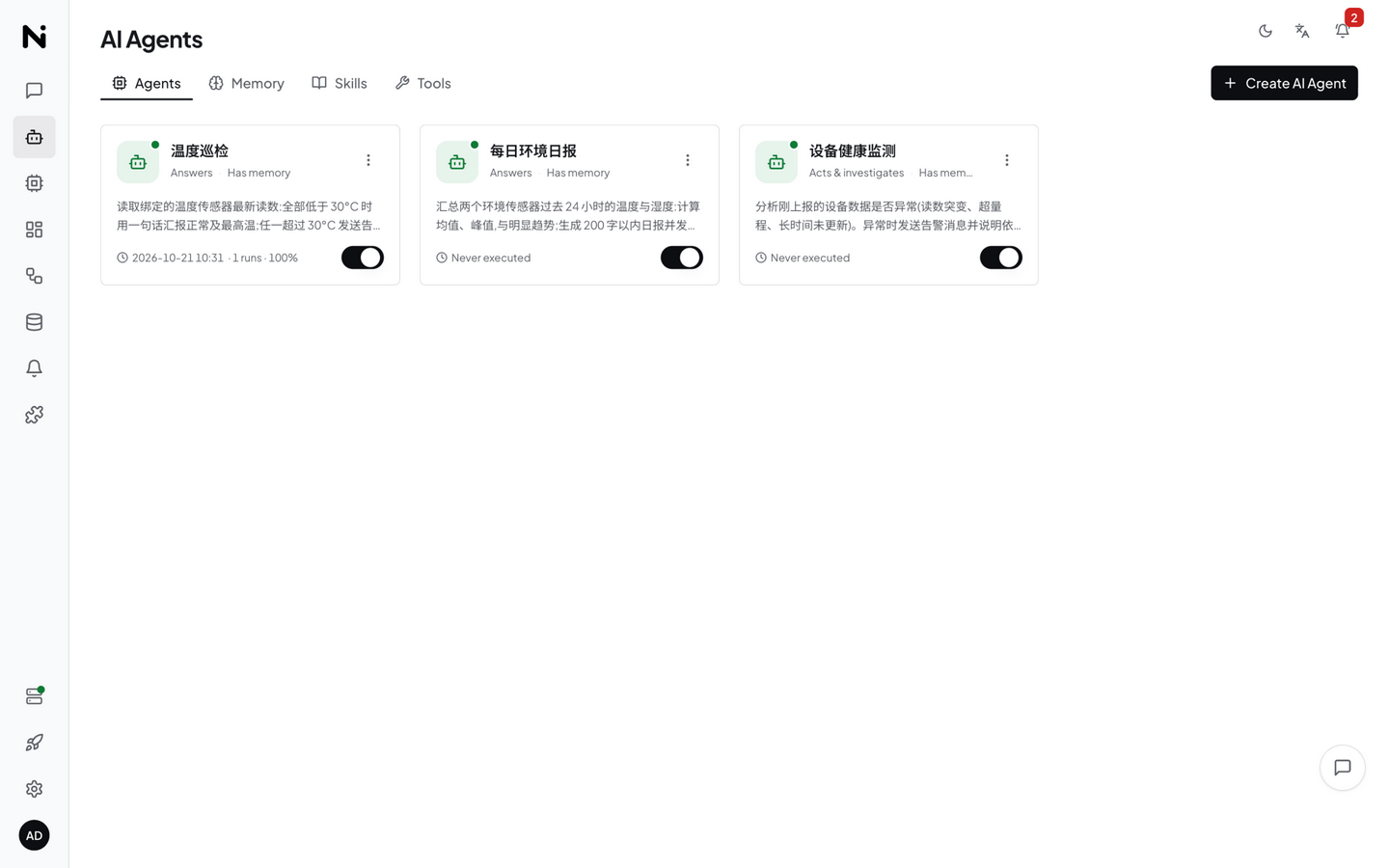
The page displays all agents in a card grid, each card showing:
| Info | Description |
|---|---|
| Agent Name | The name you set (e.g. "Temperature Patrol", "Energy Report") |
| Status Badge | Active / Paused / Executing / Error / Completed (manual task ready) |
| Schedule | Timer / Data-driven / On Demand |
| Last Run | Time and result of the most recent execution |
The page has four tabs at the top: Agents (agent list), Memory (system memory), Skills (skill management), and Tools (tool management).
Knowledge files that provide Agents with scenario-specific operational guidance (built-in skills are read-only; user skills can be created, edited, and deleted in the tab). During execution, an Agent automatically matches relevant skills by description (BM25 lexical ranking), and can also search and load them on demand via the skill tool (skill(action="search"/"load")).
Creating an Agent
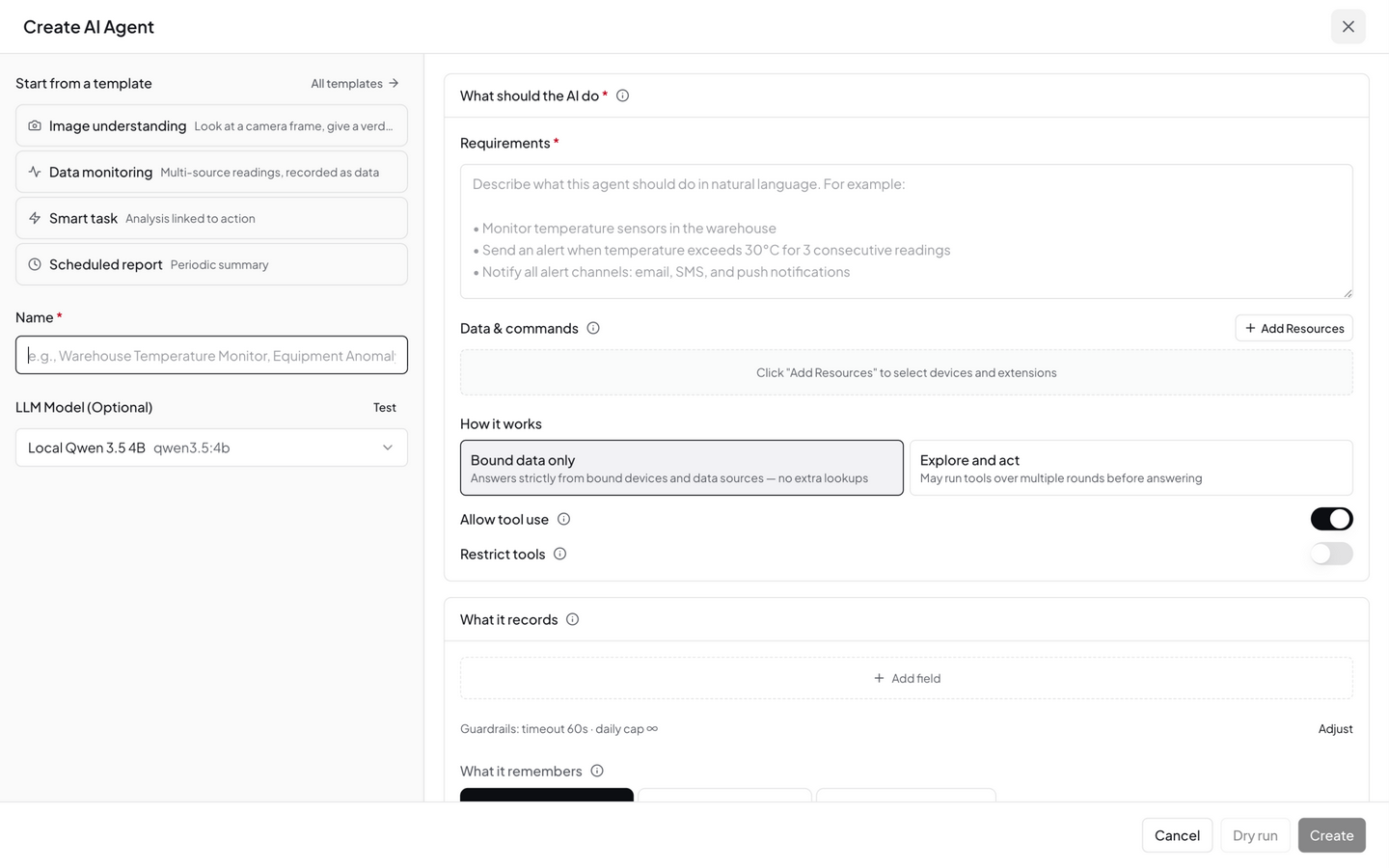
1.2.x organizes the editor around "describe the task first, then configure execution" in three sections: What should the AI do, What it records, and When it runs. You can start from a template at the top — a template is a starting point, not a lock: every field it fills stays visible and editable, and it never binds resources for you.
Click the Create AI Agent button in the top right to open the full-screen editor:
Template Gallery
The editor ships with 11 presets covering the most common task shapes:
| Template | Best for |
|---|---|
| Image Understanding | Look at a camera frame, describe the key points, judge status (normal / abnormal) |
| Data Monitoring | Scheduled multi-source readings recorded as data: overall status + abnormal item count |
| Smart Task | Analysis plus action: investigate the cause, then command bound devices directly when needed |
| Scheduled Report | Summarize the past 24 hours into a brief on a schedule |
| Event Judgement | One verdict per data arrival — normal / worth watching / something is wrong |
| Root Cause Analysis | Multi-source investigation with most likely cause, confidence, and next step |
| Weekly Report / Shift Check | Whole-week summary and comparison / a quick glance every half hour, reporting only changes |
| Scheduled Patrol | Rounds on a clock; remediates what it can (restart a device, resend a command) and verifies the fix |
| Data Q&A | Ask anytime; answers strictly from bound data, with timestamp and source for every number |
| Advanced Task | No template — write your own (state goal, inputs, criteria, and actions) |
What should the AI do
- Name: 1–100 characters, easy to identify (e.g. "Energy Patrol", "Device Health Monitor")
- Requirement: Tell the Agent what to do (the
user_promptin the API). 1–10000 characters - Description: Optional, ≤500 characters
- LLM backend (optional): see LLM Backend below
- Data & commands: click Add Resources to bind device metrics / extension metrics / devices / commands / extension tools. How much to bind depends on the work style below: in Focused mode this is the AI's entire input, collected automatically at run time; in Free mode it's optional preloaded data — unbound, the AI finds things itself with tools
- How it works: choose the AI's boundary of action — the execution mode
| Option | Mode | Behavior | Best for |
|---|---|---|---|
| Bound data only | Focused | Answers strictly from bound devices and data sources — no extra lookups; single-pass, token-efficient | Monitoring, alerts, data analysis |
| Explore and act | Free | May run tools over multiple rounds before answering | Complex automation, device control, exploratory tasks |
Focused mode allows zero bindings — it is then the plainest agent: no commands, no output contract. With resources bound, it only collects and analyzes data within the bound scope; scope validation rejects instructions outside it. Free mode can run multi-round tool calls (default max 30 rounds, 5-minute timeout); available tools include shell / skill / vision / web_fetch / extension tools — platform domains such as devices, rules, and messages are reached via neomind CLI commands through shell.
Tool gating (Focused / Free only)
For these two modes the editor can narrow the tool surface (structured mode does not show this setting — its contract is a single constrained inference with no tool loop):
- Allow tool use: off = a text-only agent (analyzes, never executes a tool) — for tasks where you explicitly do not want it to act
- Restrict tools: pick a whitelist from the tool catalog; the agent may call only the checked tools
A narrower surface is more than a safety fence — small models choose better among few. A query-only agent restricted to device + vision mis-picks tools far less often. If "explore and act" is on while tools are off, the editor warns: the agent degenerates to a single text reply, and the multi-round promise cannot be kept.
What it records
This section defines the Agent's structured output contract (structured mode / L0 operator): without output fields the conclusion is prose; with fields, it produces schema-validated data. See Structured Mode (L0 Operator). Structured mode requires at least one bound input source and at least one output field, and hides tool gating.
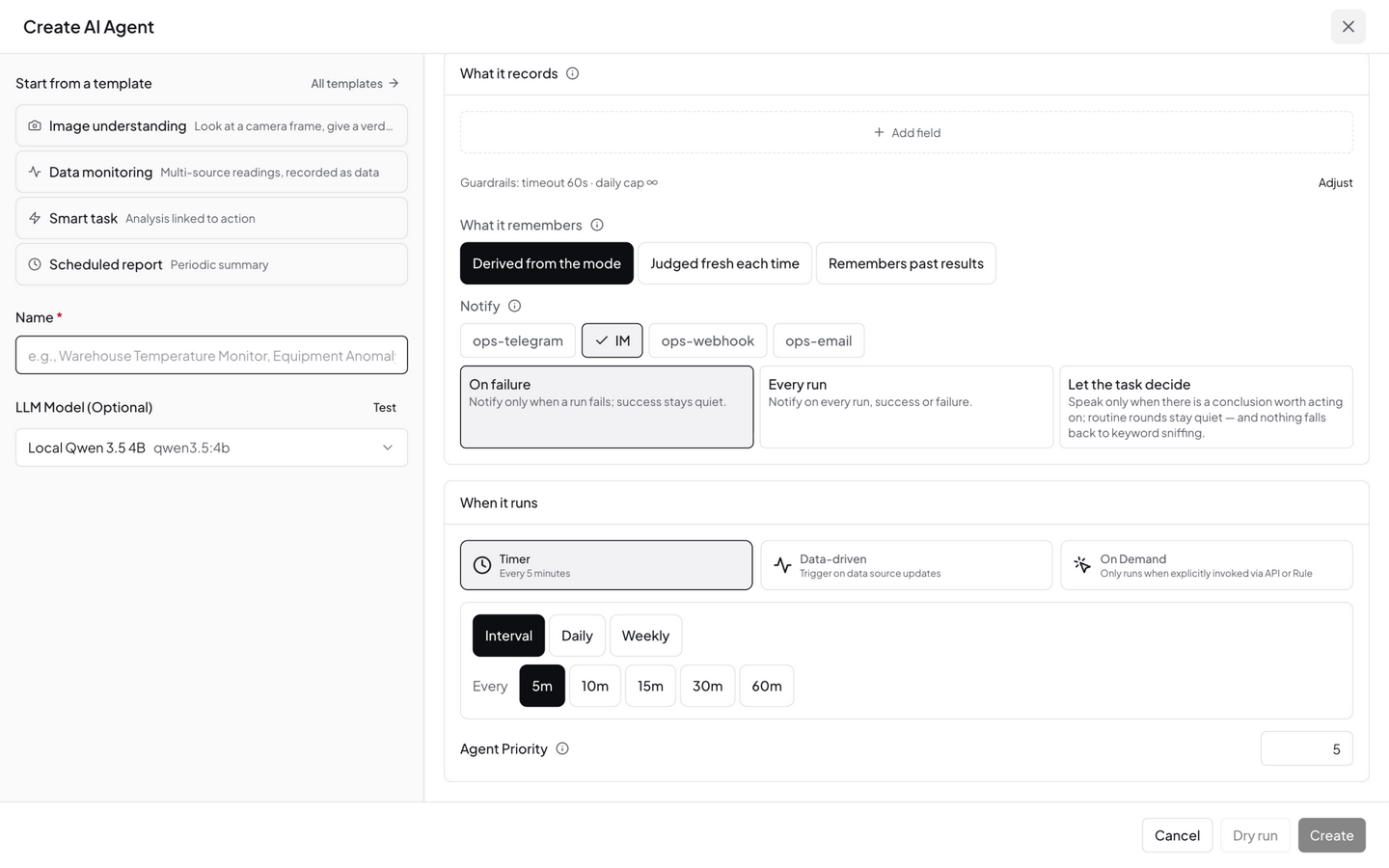
What it remembers
Controls how much history the Agent carries across executions (the memory_mode API field):
| Option | Behavior |
|---|---|
| Derived from the mode (default) | Structured → judged fresh each time (Tool); Focused / Free → remembers past results (Assistant) |
| Judged fresh each time (Tool) | Stateless: sees only this run's data — cheaper, faster, repeatable. The journal is still recorded (for humans), and your standards and corrections always apply |
| Remembers past results (Assistant) | Each run carries the narrative of recent results — it can say "worse than last time" |
Notify
Pick the channels to deliver to (multi-select, from the Messages module) and when to notify (notify.on):
| When | Behavior |
|---|---|
| On failure (default) | Notify only when a run fails — silence is health |
| Every run | Notify after every run, success or failure |
| Let the task decide | No routed notification is built, and the old keyword sniffing is not used as a fallback — when the agent finds something worth saying, it says it with its own tools (neomind message send) |
With no external channels configured, alerts still land in Messages — nothing is lost.
When it runs
| Strategy | Description | API field |
|---|---|---|
| Timer | Interval / daily / weekly presets; the editor generates the cron or interval config | schedule_type: "cron" / "interval" |
| Data-driven | Pick trigger sources (devices / extensions / AI metrics / transforms / system — five groups): fire when any source gets new data, or require all selected sources to appear within a time window | schedule_type: "event" |
| On Demand | Never auto-runs; only invoked explicitly (Execute Now / Invoke API / rule engine) | schedule_type: "manual" |
At the API level, Agent cron uses the 6-field format (sec min hour day month weekday); a 5-field expression (min hour day month weekday) is also accepted — the system prepends 0 to the seconds field, so 0 9 * * * means daily 09:00. Data-driven triggers have a default 60-second dedup window (configurable per agent) to prevent event storms.
LLM Backend
Each Agent can bind an independent LLM backend. Decoupled from the Chat model — switching Chat models doesn't affect Agent configuration. Recommendations:
- Simple monitoring: Local small model (
qwen3.5:4b), lower latency and cost - Complex analysis: Large model (
qwen3.5:32b/ cloud model), better reasoning quality
Advanced
- Agent Priority: 0–255, default 128; higher runs first (applies when queuing under concurrency)
- Conversation context: how many recent conversation turns to load as execution context
- Custom system prompt: ≤4000 characters, overrides the default identity
- Allow tool use / Restrict tools: see tool gating above
Click Save at the bottom to save the Agent.
Worked Example: Creating the "Temperature Patrol" Agent
Let's tie the fields together with a concrete goal: "check all temperature sensors once an hour; notify ops above 35°C". Fill in each field:
| Field | Value | Notes |
|---|---|---|
| Name | Temperature Patrol | 1–100 characters, required |
| Description | Hourly temperature patrol with automatic over-temperature alerts | Optional, ≤500 characters |
| Requirement | See below | 1–10000 characters, required |
| How it works | Bound data only (Focused) | Works only within the bound sensors — saves tokens and can't touch other devices |
| Data & commands (Resources) | Bind the temperature metric of 2 temperature sensors | Focused allows zero bindings; bound data is collected automatically at run time |
| When it runs | Timer → hourly (API cron 0 0 * * * *) | 6-field format (with seconds) — every hour on the hour |
| LLM Backend | qwen3.5:4b (or a stronger model) | A local small model is fine for simple patrols |
Requirement example (copy and adapt):
You are a temperature patrol officer. Read the latest values of all bound temperature sensors:
1. All below 35°C: report in one sentence — "Patrol OK, max temperature XX°C";
2. Any above 35°C: send an alert message (title includes device name and current
   temperature) and state in your reply that the alert was sent;
3. If the journal shows the same alert was already sent for the same device in the
   previous round, do not send it again.
After clicking Save, the Agent appears in the list immediately with status Active and starts following the cron schedule.
Creating the Same Agent via the API
Every Web UI field maps to a field in the POST /api/agents request body. The request equivalent to the table above:
curl -X POST http://localhost:9375/api/agents \
  -H "Authorization: Bearer <JWT>" \
  -H "Content-Type: application/json" \
  -d '{
    "name": "Temperature Patrol",
    "description": "Hourly temperature patrol with automatic over-temperature alerts",
    "user_prompt": "Read the latest values of all bound temperature sensors; send an alert above 35°C, otherwise report briefly.",
    "execution_mode": "focused",
    "resources": [
      { "resource_id": "device:sensor-01:temperature", "resource_type": "metric", "name": "Machine Room 1 Temperature" },
      { "resource_id": "device:sensor-02:temperature", "resource_type": "metric", "name": "Machine Room 2 Temperature" }
    ],
    "schedule": { "schedule_type": "cron", "cron_expression": "0 0 * * * *" },
    "llm_backend_id": "default"
  }'
Successful response (id is used for later queries and triggers):
{
  "success": true,
  "data": { "id": "8f3a…", "name": "Temperature Patrol", "status": "active" }
}
Key request body constraints (identical to the Web UI validation):
| Field | Constraint |
|---|---|
name | Required, 1–100 characters |
user_prompt | Required, 1–10000 characters |
description | Optional, ≤500 characters |
system_prompt | Optional, 1–4000 characters, overrides the default identity |
execution_mode | focused (default) / free / structured; structured requires at least one bound input source (resources) and at least one output field (output_schema) |
schedule.schedule_type | interval / cron / event / manual; interval needs interval_seconds ≥ 10 (0 = fully manual); cron accepts a 6-field cron_expression (5-field is auto-prefixed with 0 seconds) |
resources[].resource_type | device / metric / command / extension_metric / extension_tool / data_stream |
max_chain_depth | 1–30, default 10 (tool-call round cap for Focused+ mode; Free mode ignores this field and uses the platform default 30-round cap) |
priority | 0–255, default 128; higher runs first |
context_window_size | 1–100, default 10 (recent conversation turns loaded as context) |
memory_mode | Optional, tool (stateless) / assistant (carries history narrative); defaults derived from the execution mode (structured → tool, others → assistant) |
notify | Optional explicit notification routing: { "channels": ["IM"], "on": "failure" }; on is failure / always / judgment |
output_schema | structured only: output field array, see Structured Mode (L0 Operator) |
operator_config | structured only: guardrail tuning (debounce / daily cap / timeout / breaker), see below |
Structured Mode (L0 Operator)
Structured mode is an execution mode of single constrained inference: no intent-analysis preamble, no tool loop — bound data sources in, schema-validated fields out. It fits "scheduled or event-driven readings → recorded as data" scenarios (data monitoring, status judgement, abnormal item counting).
Output field schema (output_schema)
Define output fields in the editor's "What it records" section. Each field has:
| Attribute | Description |
|---|---|
| Field name (name) | Becomes the metric name, e.g. missing_count |
| Type (field_type) | Number / Text / Boolean / Enum — Enum restricts the model to the listed values (e.g. normal, to-check, stopped) |
| Unit (unit) | Optional, shown by dashboards (e.g. ℃, pcs) |
| Meaning (description) | Optional, injected into the prompt so the model knows what to emit |
Each output field is schema-validated and published as a platform virtual metric identified as ai:{agent_id}:{field} (e.g. ai:8f3a…:status) — dashboards, rule conditions, and data push can reference it directly, using the same mechanism as Data Transforms derived metrics.
Guardrails (operator_config)
| Guardrail | Default | Description |
|---|---|---|
| Debounce (debounce_secs) | 30 s | Inputs are merged; at most one inference per 30 seconds |
| Daily cap (max_calls_per_day) | Unlimited | Exceeded, the agent pauses until the next day (unset it for local models) |
| Per-inference timeout (timeout_secs) | 60 s | L0 is a single call, not the 300-second agent loop |
| Circuit breaker (consecutive_failure_threshold) | 3 | After this many consecutive failures the breaker opens: the agent degrades to keeping last values, marked stale |
| Event cooldown (event_cooldown_secs) | 60 s | Minimum interval between two event-triggered runs; 0 = fire whenever idle |
Dry run
Before saving, click Dry run: it really collects the input sources and runs one inference, with the result explicitly marked "nothing saved" — use it to verify that your field definitions produce the expected conclusions.
Constraints and memory
- At least one input source and at least one output field are mandatory, or the save is rejected
- Memory is fixed to Tool (stateless): each run sees only the current input, no history narrative
- Notifications default to On failure; converting a regular agent to structured: a multi-round conclusion is prose, so turning it into fields costs one extra model call at the end of every run (the editor calls this out)
Running It Once and Reading the Results
No need to wait for the cron tick — verify the Agent works as expected right after saving:
Step 1 · Trigger an execution: click Execute Now at the top right of the detail page, or call the API:
curl -X POST http://localhost:9375/api/agents/<agent_id>/execute \
  -H "Authorization: Bearer <JWT>" \
  -H "Content-Type: application/json" \
  -d '{ "trigger_type": "manual", "input": "Run one patrol" }'
Step 2 · Poll the execution status: an execution usually takes tens of seconds (collect data → LLM analysis → actions). The status badge changes in real time (Executing → Active); you can also poll the API:
curl http://localhost:9375/api/agents/<agent_id>/executions
Fields of an execution record (illustrative):
{
  "executions": [{
    "id": "exec-9c1f…",
    "agent_id": "8f3a…",
    "timestamp": "2026-09-09T14:00:00Z",
    "trigger_type": "manual",
    "status": "Completed",
    "duration_ms": 21340
  }]
}
status values: Running / Completed / Failed / Partial (some actions failed). On Failed, check the error field.
Step 3 · Read the execution detail (decision process): append the execution id to the detail endpoint to see the Agent's full reasoning chain — which data was collected, each reasoning step, every decision, and the final conclusion:
curl http://localhost:9375/api/agents/<agent_id>/executions/<execution_id>
The detail is organized in two blocks: decision_process (situation_analysis → data_collected → reasoning_steps → decisions → conclusion) and result (actions_executed, notifications_sent, summary). This is the primary place to debug "why didn't the Agent alert" / "why did it alert twice". In the Web UI, clicking an entry in the execution history shows exactly this content.
Step 4 · See what the journal recorded: after the execution finishes, the memory system appends a journal entry (visible in the detail page's Memory panel). The structure of a journal entry:
{
  "timestamp": "2026-10-21T04:04:23+00:00",
  "execution_id": "exec-9c1f…",
  "outcome": "Patrol OK: 2 sensors at 26.4°C / 27.1°C, below the 35°C threshold, no alert needed",
  "action_taken": "Read latest temperature of sensor-01; Read latest temperature of sensor-02; Report patrol result",
  "success": true
}
outcomeis the LLM's conclusion summary (truncated to 300 characters)action_takenis the list of executed actions (max 5 entries, each truncated to 150 characters)- The journal is FIFO with only the most recent N entries kept; the Agent reads these before each execution — which is what makes "don't repeat the alert from last round" in the example prompt actually work.
Agent Detail
Click any Agent card to open the detail panel:
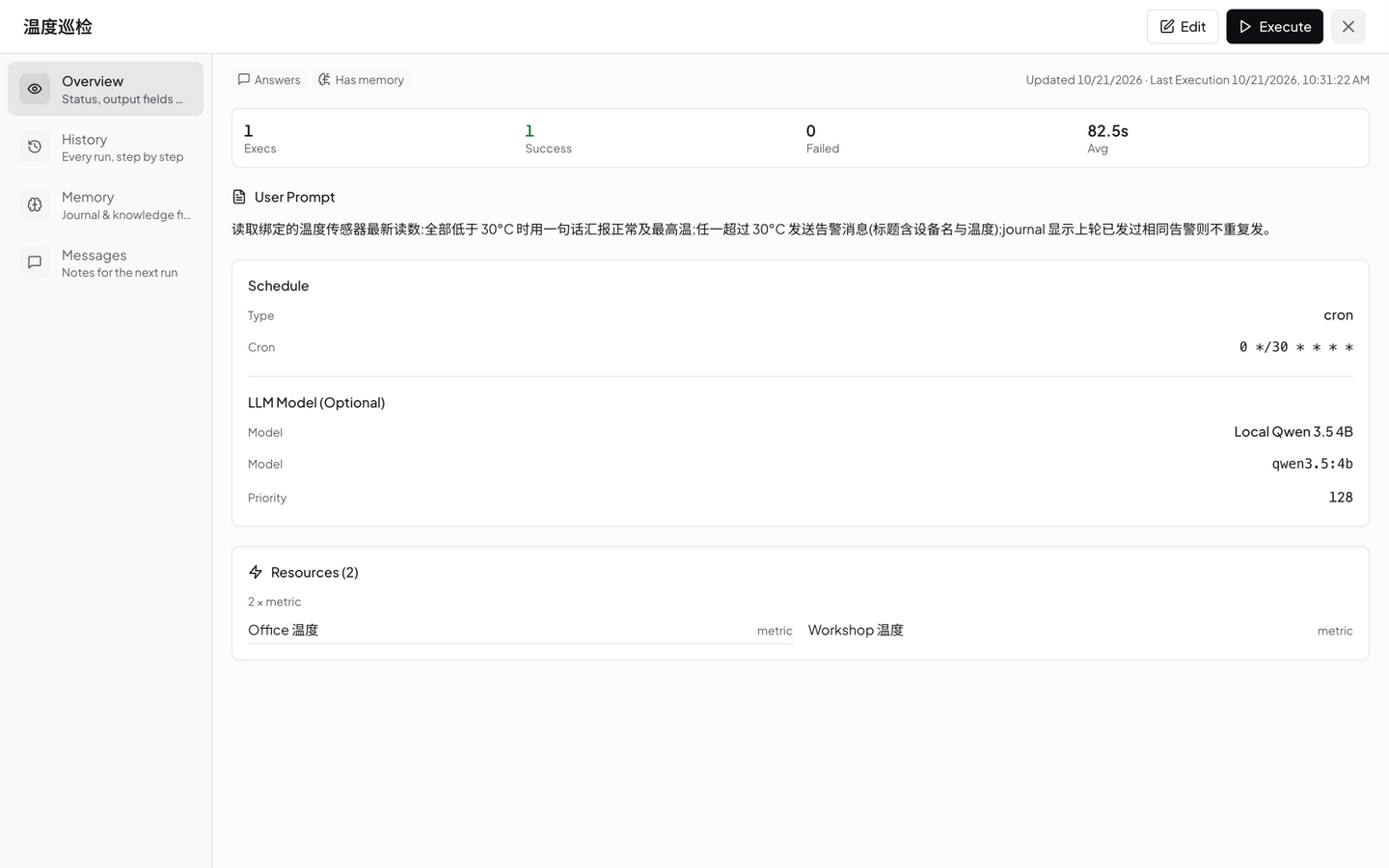
The detail panel contains multiple sections:
| Section | Description |
|---|---|
| Top Action Bar | Edit and Execute Now buttons |
| Overview | Agent basic info, bound resources, schedule config, LLM backend |
| Execution History | Chronological execution records with success/failure status and duration |
| Memory | Journal logs and Knowledge files |
| User Messages | Feedback messages left for the Agent |
The Execute Now button in the top right triggers an immediate execution without waiting for the schedule.
Agent Memory System
Agents have an independent memory system that accumulates experience across execution cycles:
Journal (Execution Log)
Each execution writes a journal entry recording:
- Execution time and trigger type
- Collected data summary
- LLM analysis conclusion
- Actions taken (
action_taken) - Success / failure status
For a full example of one entry's fields, see Running It Once and Reading the Results — Step 4. On the next execution, the Agent reads recent journal entries to learn from historical patterns (avoid repeating failed actions, adjust thresholds, skip already-sent alerts).
Knowledge Files
The Agent's persistent knowledge in Markdown format, stored under data/memory/agents/<agent_id>/ (up to 20 files). When the Agent is created, a task-understanding.md file is automatically initialized, solidifying what you entered in the form into the Agent's self-image. For a "Temperature Patrol" agent, the actual content looks like this:
# Task Understanding

## Identity & Role
You are an intelligent IoT agent named 'Temperature Patrol' monitoring edge devices.

## Mission
Read the latest values of all bound temperature sensors; send an alert above 35°C,
otherwise report briefly.

## Bound Resources
- Machine Room 1 Temperature (device:sensor-01:temperature)
- Machine Room 2 Temperature (device:sensor-02:temperature)

## Schedule
Cron: 0 0 * * * *

## Status
- Execution mode: Focused
- Created: 2026-09-09 14:00 UTC

## Memory Commands
- Read this file: `memory(action='read', target='custom:task-understanding')`
- Update this file: `memory(action='add', target='custom:task-understanding', ...)`
- Create new knowledge file: `memory(action='create', target='custom:{name}', content='...')`

## Notes
This file was auto-created when the agent was created.
The AI should update it as it learns more about the environment and discovers patterns.
The four core sections map one-to-one onto the creation form: Identity & Role (identity, from the System Prompt; a default template is used when unset), Mission (from the User Prompt), Bound Resources (the bound resources), Schedule (the execution plan). You can manually edit the file to fine-tune Agent behavior (Agent detail → Memory panel); the Agent also appends discovered thresholds, device quirks, and patterns as it runs — for example, after a few rounds you may find it added "sensor-02 consistently reads ~2°C higher than sensor-01 on summer afternoons". The content is injected into the prompt of every execution, bounded by the context length of the Agent's bound LLM.
User Messages (Feedback)
You can leave messages for the Agent (Agent detail page → User Messages), which the Agent reads on its next execution. Used to correct Agent behavior or provide additional context. Auto-retains the most recent 50 messages.
Execution Flow
Tool calls can loop (G → E) until the LLM no longer needs tools or hits the 30-round limit.
Status Management
The status badge on each Agent card reflects the current state in real time:
| Status | Description | Color |
|---|---|---|
| Active | Agent is active, auto-executes on schedule | Green |
| Executing | Agent is currently running (real-time WebSocket push) | Blue / animated |
| Paused | Agent is paused, won't auto-trigger (can be run manually) | Gray |
| Stopped | Agent is stopped, not scheduled | Gray |
| Error | Last execution failed, check logs to troubleshoot | Red |
| Completed | Ready state after a manual task finishes; can be run again | Green |
Pause/activate is toggled via the switch button on the card, which syncs with the scheduler — pausing unschedules, activating reschedules.
Real-time Execution Status
When an Agent is executing, the card shows a live "Thinking..." indicator (pushed via WebSocket), letting you see what the LLM is currently doing (e.g. "Querying device data", "Analyzing temperature trends").
Manual Execution
Don't want to wait for the schedule? Click Execute Now on the Agent card or detail page to execute immediately.
Typical Scenarios
Scenario 1: Hourly Temperature Patrol (Focused + Cron)
- Mode: Focused
- Resources: Bind 3 temperature sensor metrics
- Schedule: Cron
0 0 * * * *(hourly) - Prompt: Check the latest readings from all temperature sensors. Notify via Slack if above 35C. Send Telegram + email if above 45C.
Scenario 2: Event-Driven Anomaly Diagnosis (Free + Event)
- Mode: Free
- Resources: None (free exploration)
- Schedule: Data-driven (device data change)
- Prompt: Analyze whether the incoming data is anomalous. If abnormal, query related device history, determine if alerting or auto-remediation is needed. May use shell tool to check system status.
Scenario 3: Daily Energy Report (Focused + Cron)
- Mode: Focused
- Resources: Bind energy consumption metrics
- Schedule: Cron
0 0 8 * * *(daily 8 AM) - Prompt: Summarize yesterday's 24-hour energy data, calculate peak and average, compare with the same period last week, generate a daily report, and send it to the ops email.
CLI Management
# List all agents
neomind agent list

# View agent details
neomind agent get <agent_id>

# Activate / pause
neomind agent control <agent_id> active
neomind agent control <agent_id> paused

# Manually trigger execution (with input hint)
neomind agent invoke <agent_id> "Check all sensor readings"
Concurrency & Timeout
- Global concurrency: Max 10 Agents executing simultaneously
- Per-LLM-backend concurrency: Max 2 concurrent requests per backend
- Global timeout: Max 5 minutes (300 seconds) per execution
- Tool timeout: Shell 30s (max 600s), Web fetch 15s, Extensions 300s
If concurrency is full, the scheduler skips the current execution (retries on next tick).
Prompt Tips
- Be specific about output: "Generate a summary under 200 words" is more controllable than "analyze data"
- Give conditional branches: "If temp > 35 notify Slack; if > 45 also send Telegram and email"
- Reference device names: "Check sensor-01 through sensor-03" is more precise than "check all sensors"
- Leverage memory: The Agent reads journals, so you can write "If the same alert was already sent last time, don't repeat it"
Integration with Other Modules
| Module | Integration |
|---|---|
| Automation Rules | The rule trigger_agent action triggers Agents; run_operator runs a structured operator |
| Notifications | Agent decides whether to send notifications after analysis |
| Devices | Focused mode binds device metrics |
| AI Chat | Two AI operation modes, complementary |
Mobile
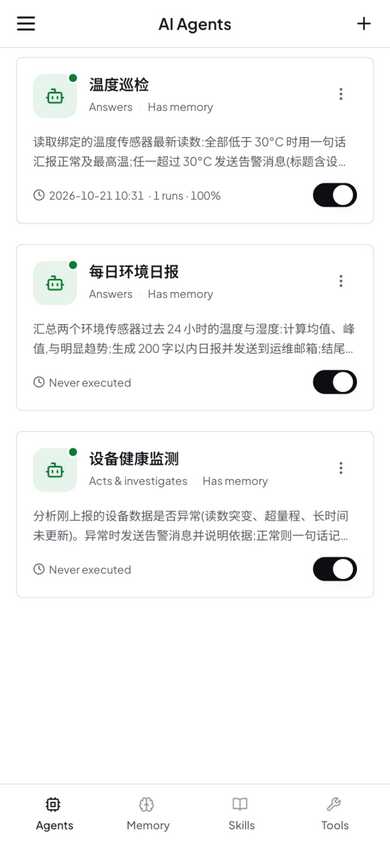
On mobile, the interface switches to a single-column card list, supporting status viewing, manual execution, and pause/activate toggling.
Common Pitfalls
- Structured save rejected:
Structuredmode requires at least one bound input source and at least one output field — both are mandatory. UseFreefor free exploration, keepFocusedfor prose conclusions — both allow zero bindings. - Cron field count: At the API level, Agent cron uses the 6-field format (
sec min hour day month weekday). Pasting a 5-field expression (0 9 * * *) does not error — the system prepends0to the seconds field and reads it asmin hour day month weekday(daily 09:00). Write all 6 fields when you need second-level precision. - Interval too small gets rejected:
interval_secondsmust be at least 10; setting0means "fully manual" (on-demand) — it never auto-schedules and only runs via Execute Now. - Changed the User Prompt but behavior didn't change: check task-understanding.md — it solidified the task description at creation time, and the Agent keeps appending experience to it. Behavior is driven by that file together with the User Prompt; edit the file in the Memory panel when needed.
- "Why did it forget last week?": the journal is a FIFO ring that keeps only the most recent N entries. Rules the Agent must remember long-term belong in the User Prompt, task-understanding.md, or User Messages — not the journal.
- Judging too early: a single execution can take up to 5 minutes. While the status is Executing, wait for the WebSocket updates or poll the executions endpoint instead of assuming failure.
Next Steps
- Automation Rules — Use JSON rules for deterministic triggers and Agents for fuzzy judgment — they complement each other
- Notifications — Agent needs to notify ops after analysis? Configure notification channels first
- Extensions — Agents can call commands from installed extensions (YOLO detection, OCR, etc.)
Last updated: 2026-10-21