Security Hardening
Before production handover: change default credentials, restrict network access, and review app permissions.
1. Credentials and Tokens
1.1 Change the Web Password
- Open Settings → Device Info → Change Password.
- Enter the old password, new password, and confirmation.
- Click Confirm.
- Sign in again after the service returns.
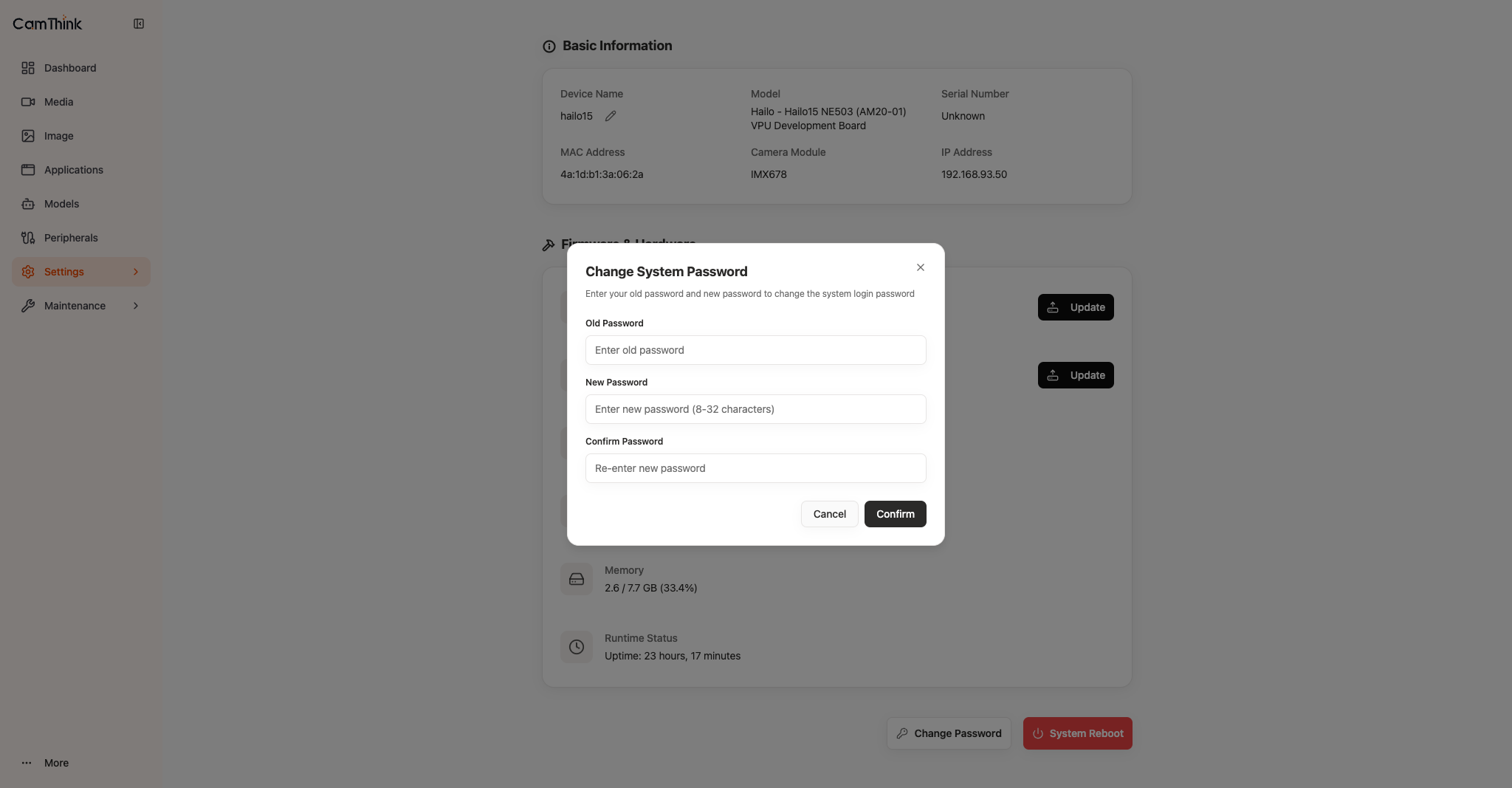
The old Web session and token become invalid after the change. Current firmware does not force a first-login password change; a forgotten Web password cannot be recovered on the device, so contact support for reflashing.
1.2 SSH
ssh root@<device-ip>
passwd
Prefer key-based login in production.
1.3 API Tokens
Rotate the static API key in production and update integrations. Treat tokens like passwords; do not put them in logs or repositories. For API fields, authentication, and integration-key configuration, see the neoruntime OpenAPI.
2. Restrict the Network
| Port | Use | Recommendation |
|---|---|---|
:443 | Web / REST API | Operations subnet only |
:8554 | RTSP | Video consumers only; no authentication |
:8081 TCP / :3702 UDP | ONVIF (disabled by default; exposed when onvif-device is enabled) | When using ONVIF, allow the NVR / VMS subnet only |
:22 | SSH | Restrict source IPs; block when unused |
Keep the device on an intranet or VLAN; never port-forward it directly to the internet. For remote access, use a VPN or an authenticated internal proxy.
3. App Permissions
Grant only permissions required by the app:
Path: the Applications → Import wizard. Model access is configured in the wizard's Models section; stream, event, and network permissions are configured in the Permissions section.
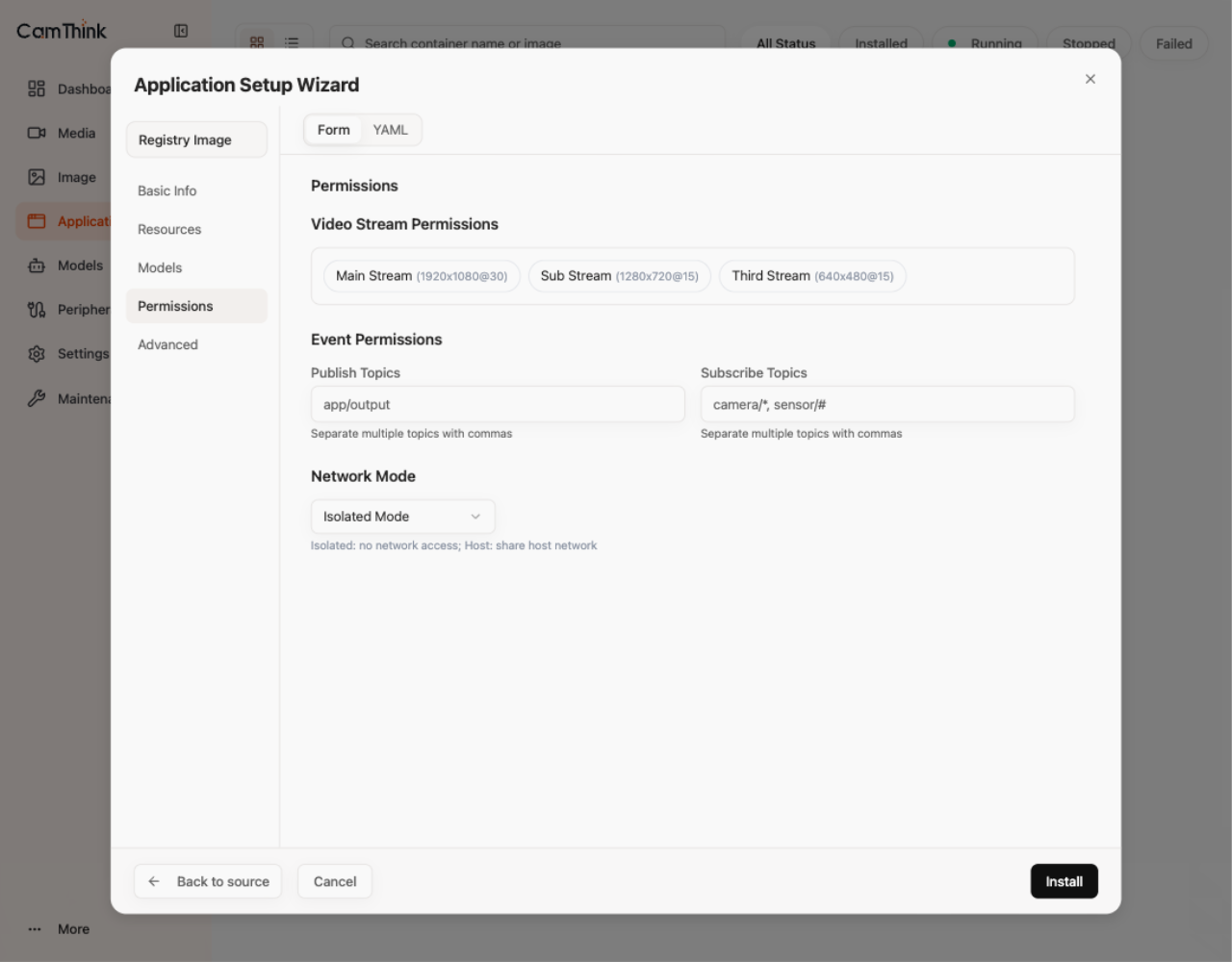
| Section | Permission | Principle |
|---|---|---|
| Models | Model Dependencies | Declare only the model aliases the app actually calls; set Max Inference QPS / Max Concurrent Inference limits; keep Allow Dynamic Model Registration off unless required |
| Permissions | Video Stream Permissions | Select required streams only |
| Permissions | Event Permissions | Select required publish / subscribe topics only |
| Permissions | Network Mode | Keep Isolated Mode unless Host is required |
Device-control permission settings are temporarily hidden in the v1.1.0 import wizard.
Install only self-built images or packages released by the official neoruntime-apps repository, and verify the source and version.